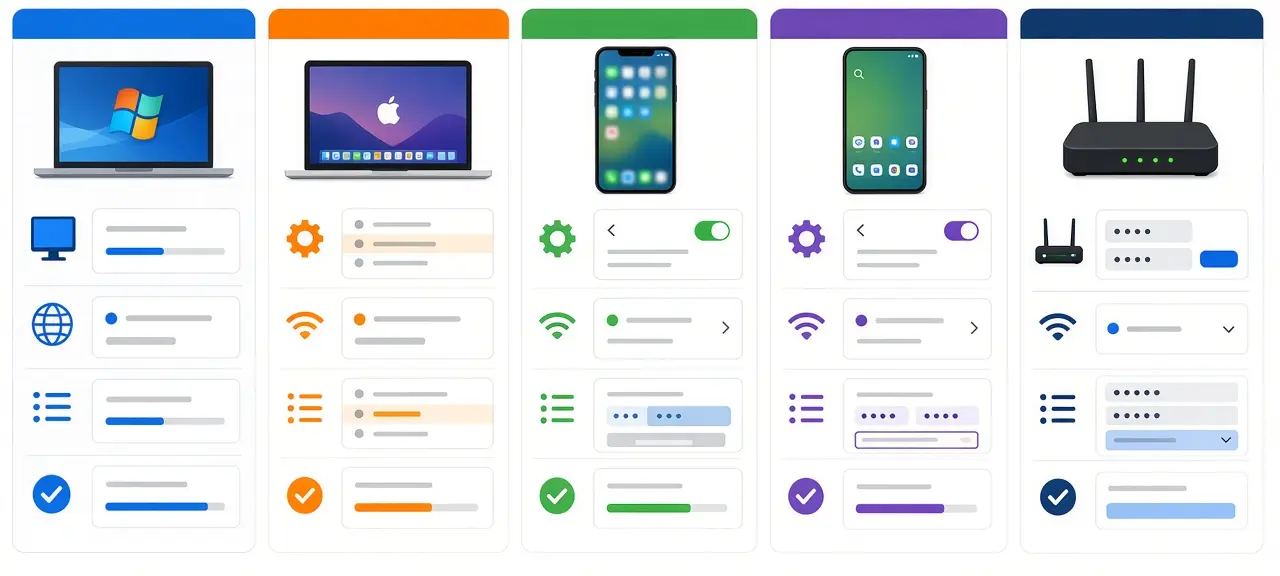

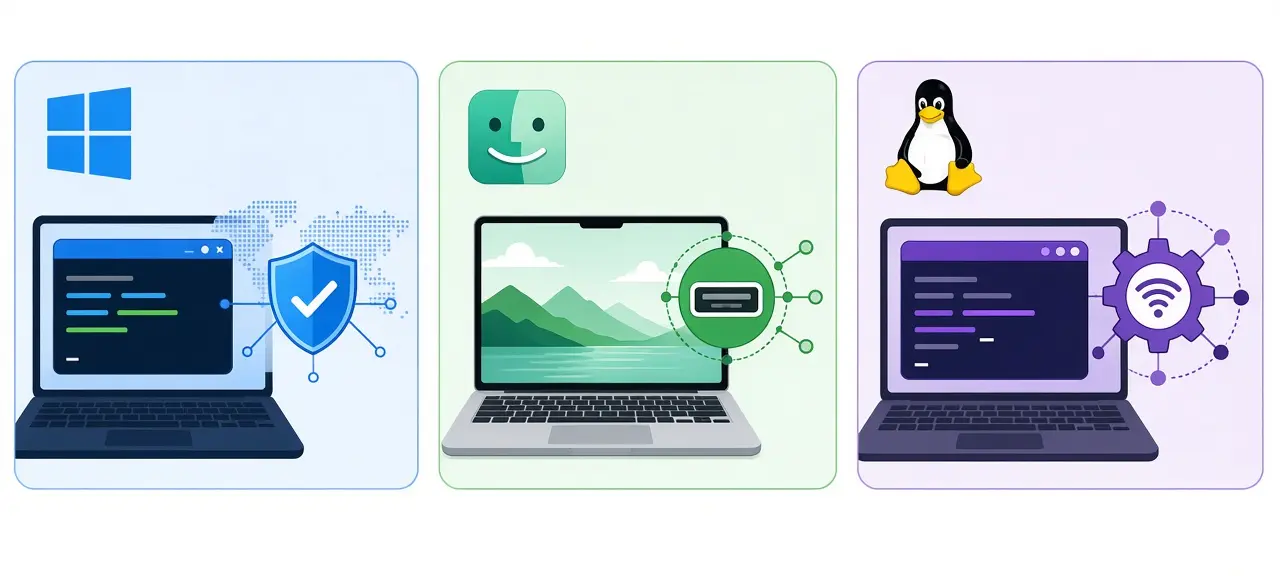
To check for open ports on your own computer, list the ports that apps are listening on: run netstat -ano | findstr LISTENING on Windows, sudo lsof -nP -iTCP -sTCP:LISTEN on a Mac, or sudo ss -tulpn on Linux. A port in that list is open on the device. It is only reachable if the firewall allows it, and from outside your home only if your router forwards it. To see what the internet sees, run your public IP through an online port checker. The table below is the short version.
| System | List listening ports | Find the app | Test from another device |
|---|---|---|---|
| Windows | netstat -ano | findstr LISTENING |
Task Manager, Details tab (PID column) | Test-NetConnection IP -Port N |
| macOS | sudo lsof -nP -iTCP -sTCP:LISTEN |
COMMAND and PID columns of lsof | nc -vz IP N |
| Linux | sudo ss -tulpn |
Process column of ss | nc -vz IP N |
Three meanings of an "open" port
An "open" port can mean three different things: an app on the device is listening on it, the device's firewall lets connections in, or another machine can actually reach it over the network or the internet. Each layer has its own check. A port must pass all three before a phone outside your home can connect.
| Layer | Question it answers | How to check |
|---|---|---|
| Listening | Is an app waiting for connections on this port? | netstat, Get-NetTCPConnection, lsof, ss |
| Allowed | Does the device's firewall let connections in? | Windows Defender Firewall, macOS Firewall, ufw or firewalld |
| Reachable | Can another device or the internet connect? | Test-NetConnection or nc on the LAN, an online checker from outside |
A Minecraft Java server shows the difference. The server runs on your PC and port 25565 shows LISTENING, so layer one passes. Windows Firewall blocks the inbound connection, so a friend on the same Wi-Fi can't join. After you allow it, players outside your home still need a port forwarding rule on the router. If you need a refresher on what a port number is and how TCP and UDP ports differ, start there.
How to check for open ports on Windows
On Windows, open Command Prompt and run netstat -ano | findstr LISTENING. Each line is a TCP port with an app listening on it, and the last number is the process ID (PID) of that app. PowerShell, Resource Monitor and TCPView show the same data with filters or a window instead of text.
Command Prompt with netstat
According to Microsoft's netstat reference, -a shows connections plus the TCP and UDP ports the computer is listening on, -n shows addresses as numbers, and -o adds the PID. Shortened output looks like this:
  Proto  Local Address          Foreign Address        State           PID
  TCP    0.0.0.0:135            0.0.0.0:0              LISTENING       1032
  TCP    0.0.0.0:445            0.0.0.0:0              LISTENING       4
  TCP    0.0.0.0:3389           0.0.0.0:0              LISTENING       1180
  TCP    127.0.0.1:9100         0.0.0.0:0              LISTENING       7344
Proto is the protocol. Local Address is the IP and port on your PC. Foreign Address shows the other end, which is empty (0.0.0.0:0) for a listening port. State is LISTENING here; Microsoft's documentation calls it LISTEN, but Windows prints LISTENING. The PID numbers above are examples and differ on every PC.
To check one port, filter by it, keeping the colon so 80 doesn't also match 8080:
netstat -ano | findstr :3389
Adding -b prints the program name next to each port. Microsoft notes that this option "will fail unless you have sufficient permissions", so open Command Prompt with Run as administrator before you use netstat -abno.
PowerShell
PowerShell returns objects you can sort and filter, which is easier when a machine has dozens of ports open:
Get-NetTCPConnection -State Listen | Sort-Object LocalPort
To add the program name to each row, look up the owning process:
Get-NetTCPConnection -State Listen | Select-Object LocalAddress, LocalPort, OwningProcess, @{Name='Process';Expression={(Get-Process -Id $_.OwningProcess).ProcessName}} | Sort-Object LocalPort
Add -LocalPort 3389 to check a single port. UDP has no listening state, so UDP ports come from a separate cmdlet, Get-NetUDPEndpoint.
Without commands: Resource Monitor and TCPView
Press Win + R, type resmon and open the Network tab. The Listening Ports section lists each program (Image), its PID, the address, port, protocol and firewall status. For a live view that also shows connections opening and closing, Microsoft offers TCPView as a free download in its Sysinternals collection.
A fresh Windows PC already listens on a few ports. Port 135 is the RPC endpoint mapper and 445 is SMB file sharing. PID 4 is the System process. Look up a PID before you end it, and leave svchost.exe and System alone.
How to check open ports on a Mac
On macOS, open Terminal and run sudo lsof -nP -iTCP -sTCP:LISTEN. It lists every TCP port in the listening state with the program name (COMMAND), its PID and the address it listens on (NAME). Without sudo, lsof only shows processes that belong to your user account.
sudo lsof -nP -iTCP -sTCP:LISTEN
A line ending in TCP *:5000 (LISTEN) means some program is listening on port 5000 on every network interface. The -n and -P flags stop lsof from turning addresses into hostnames and port numbers into service names, so the output shows the real numbers. To check one port, or to see UDP sockets:
sudo lsof -nP -iTCP:5000 -sTCP:LISTEN
sudo lsof -nP -iUDP
The older netstat -anv -p tcp | grep LISTEN also works on macOS, though lsof is easier to read.
Port 5000 is a common surprise for developers. Apple's list of ports used by its software includes TCP 5000 and 7000 for AirPlay, so on a Mac with AirPlay Receiver turned on, a dev server set to port 5000 can fail with "address already in use". Change the app's port or turn off AirPlay Receiver in System Settings. The macOS firewall lives under System Settings > Network > Firewall, where you allow or block incoming connections per app rather than per port.
How to check open ports on Linux
On Linux, run sudo ss -tulpn. It prints every TCP and UDP port that a program is listening on, with the program name and PID, and it works on Ubuntu, Debian, Fedora and most other current distributions. According to the ss(8) man page, -t and -u select TCP and UDP sockets, -l shows only listening sockets, -p shows the process and -n keeps numbers instead of names.
sudo ss -tulpn
sudo ss -tlpn 'sport = :22'
Read the Local Address:Port column for the port and the Process column for the program, for example users:(("sshd",pid=812,fd=3)). The second command filters to port 22; piping the output to grep :22 works too. sudo lsof -nP -iTCP -sTCP:LISTEN gives the same list in the Mac format. The older netstat -tulpn only exists if the net-tools package is installed, and many current distributions ship ss instead.
Then check the firewall layer. Ubuntu and Debian usually use ufw, while Fedora and RHEL use firewalld:
sudo ufw status verbose
sudo firewall-cmd --list-all
On a cloud VPS, the provider runs its own firewall (often called a security group) in front of the server. A port can listen and pass ufw yet still be blocked there.
How to read the local address: 0.0.0.0, 127.0.0.1 and [::]
The local address in the output tells you who is allowed to connect. 0.0.0.0 or [::] means the app accepts connections on every network interface. 127.0.0.1 or [::1] means only programs on the same computer can connect. A LAN address such as 192.168.1.20 means the app listens only on that one interface.
| Address shown | Who can connect |
|---|---|
| 0.0.0.0:port (IPv4) or [::]:port (IPv6) | Any device that can reach the computer, if the firewall allows it |
| *:port (macOS lsof) | Same as 0.0.0.0: every interface |
| 127.0.0.1:port or [::1]:port | Only programs on this computer |
| 192.168.1.20:port | Devices that reach the computer through that network interface |
This explains a common dev problem. A test web server bound to 127.0.0.1 (localhost) opens fine in your laptop's browser, but your phone on the same Wi-Fi gets nothing. Binding it to 0.0.0.0 lets the phone in. It also lets in everyone else on that network, so think twice on hotel or café Wi-Fi.
Find and close the app using a port
When an app reports "port already in use", find the PID that holds the port, turn the PID into a program name, then stop that program or move one of the two apps to a different port. The whole process takes three commands on any system.
- Find the PID:
netstat -ano | findstr :8080on Windows,sudo lsof -nP -iTCP:8080 -sTCP:LISTENon a Mac,sudo ss -tlpn 'sport = :8080'on Linux. - Get the program name: Task Manager > Details sorted by PID, or
Get-Process -Id 7344on Windows;ps -p 7344 -o comm=on a Mac or Linux. - Stop it properly: quit the app, stop its service in Services (
services.msc) on Windows or withsudo systemctl stop nameon Linux (systemctl disablekeeps it from starting at boot), or change the port in the app's settings.
On Windows, port 80 held by PID 4 is a frequent case. That PID is the System process, and the port usually belongs to a Windows web component such as IIS (the World Wide Web Publishing Service). Stop that service instead of the System process.
If you find a port you don't recognize, check the program's name and file path. A copy of a known program name in an odd folder is a warning sign. Scan the file with your antivirus instead of deleting files by hand.
Test a port from another device on your network
To test whether another device can reach the port, run a connection test from a second computer on the same network. On Windows use Test-NetConnection with the target's local IP and port; on macOS or Linux use nc -vz. A success means the app listens and the firewall allows it.
Test-NetConnection 192.168.1.20 -Port 25565
The line to read is TcpTestSucceeded : True or False, as shown in Microsoft's Test-NetConnection reference. The cmdlet ships with Windows, while the older telnet command needs the Telnet Client feature turned on first. On a Mac or Linux machine:
nc -vz 192.168.1.20 25565
Read the results together. Success on the LAN but failure from the internet points to the router, NAT or your ISP, which is where port forwarding comes in. Failure even on the LAN points to the computer's firewall, or to an app that listens only on 127.0.0.1. If you run a Pi Node, our guide to Pi Node ports lists the ports to test.
To list every open port on one of your own devices at once, Nmap can scan it from another machine, for example nmap -p 1-1024 192.168.1.20. Scan only devices you own or manage; the legal issues chapter of the Nmap book explains why permission matters.
Check whether a port is open from the internet
Commands on your computer can't tell you what the internet sees. For that, the test has to come from outside your network: enter your public IP and the port into the CheckIP port scanner. This answers "is my port open" for a game server, camera or NAS after you forward it.
Find your public IP address on the CheckIP homepage, since a private IP (192.168 address) won't work from outside. The port scan page explains what open, closed and filtered mean when you check open ports on an IP, and why a forwarded port still shows closed. Only test your own IP address or systems you have permission to test.
Frequently asked questions
Is it bad to have open ports on my computer?
Not by itself. Every PC listens on some ports, and a port bound to 127.0.0.1 can't be reached from other devices at all. The ones to review are ports on 0.0.0.0 that the firewall lets through. A home router doesn't pass unsolicited connections from the internet to your PC unless you forward a port or an app opens one with UPnP.
How do I check UDP ports?
Locally, it's easy: Get-NetUDPEndpoint in PowerShell, sudo ss -ulpn on Linux or sudo lsof -nP -iUDP on a Mac. UDP sockets have no listening state, so they show up without one. Testing UDP from another machine is harder, because many UDP services don't reply to an empty probe. Testing with the real app is more reliable.
Why does netstat show a port that an online checker says is closed?
Netstat only proves the first layer: an app is listening. The connection from the internet can still stop at the computer's firewall, at a router with no forwarding rule, or at your ISP. If your provider uses carrier-grade NAT, many customers share one public IP and inbound connections never reach your router.
How do I close an open port?
Stop the app or service that listens on it, or change its settings so it doesn't start. There is no separate switch that closes a port while the app keeps running. If you need the app but want it hidden from the network, block the port with an inbound firewall rule instead of turning the firewall off.
What ports should be open on a home PC?
Toward the internet, usually none. A home PC that only browses, streams and plays online games doesn't need any port forwarded. The exceptions are services you host yourself, such as a game server or remote access, and each one should have its own forwarding rule that you remove when you stop using it.