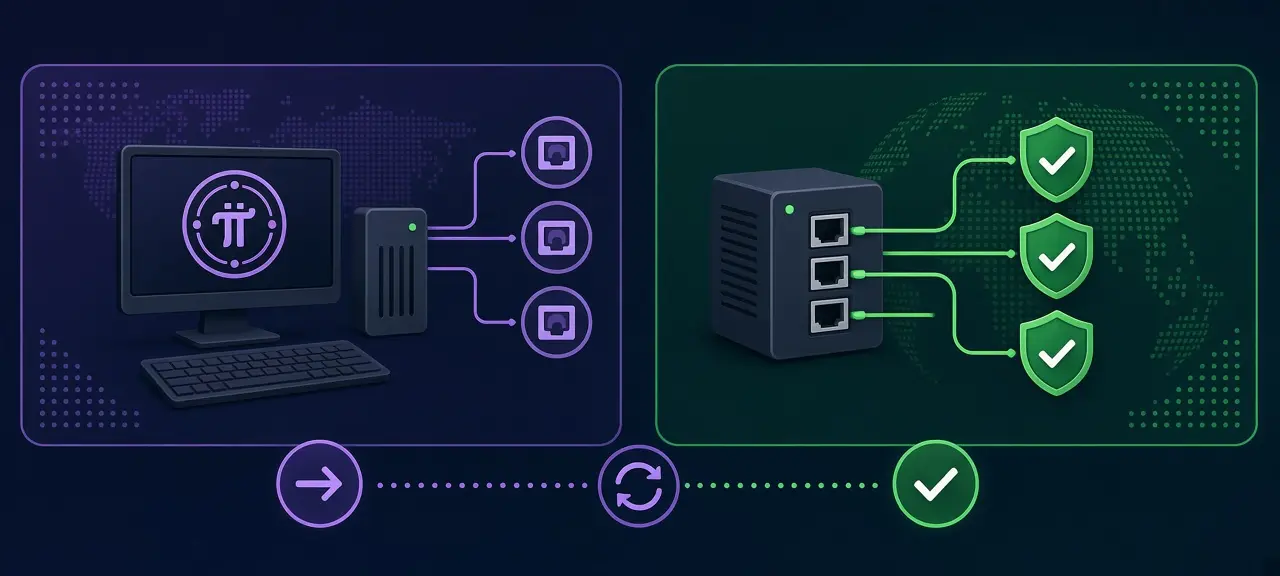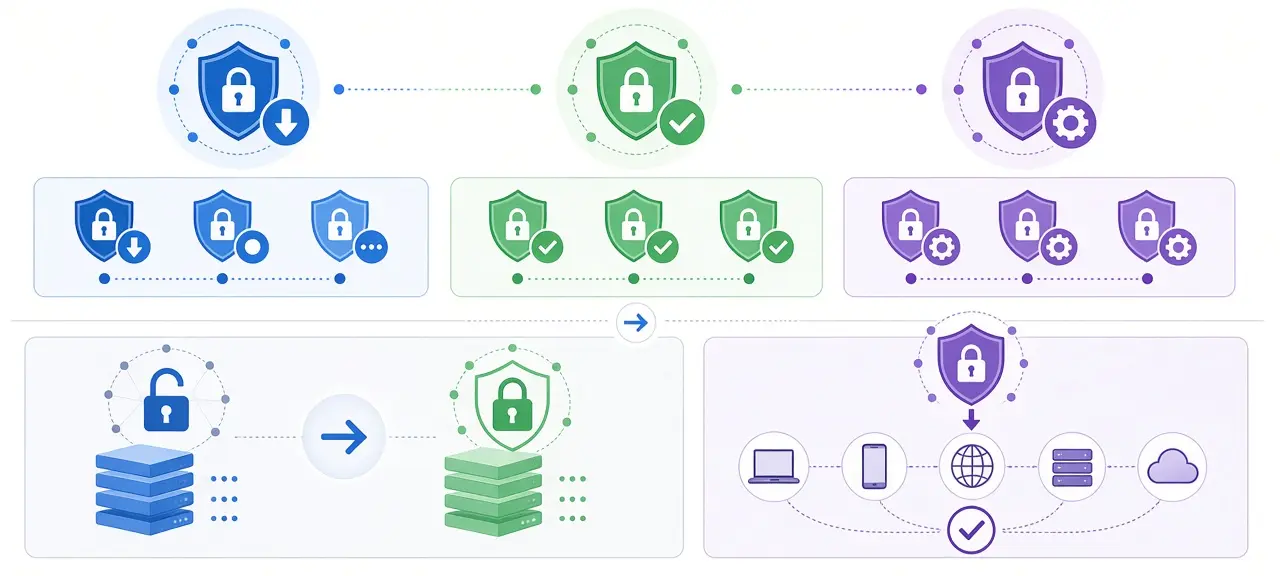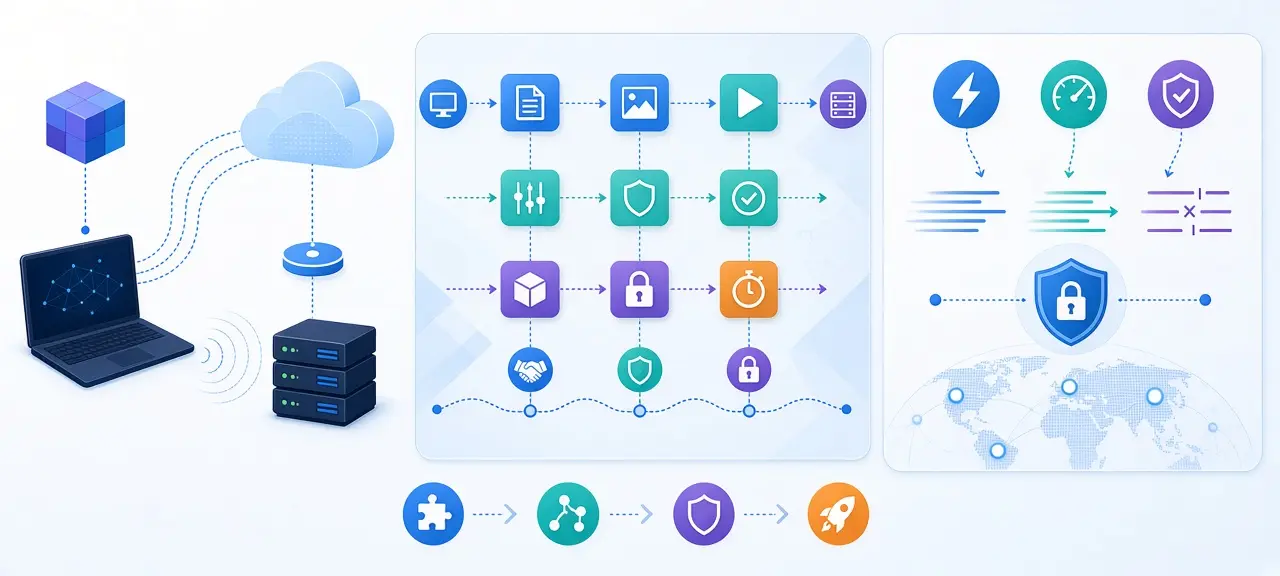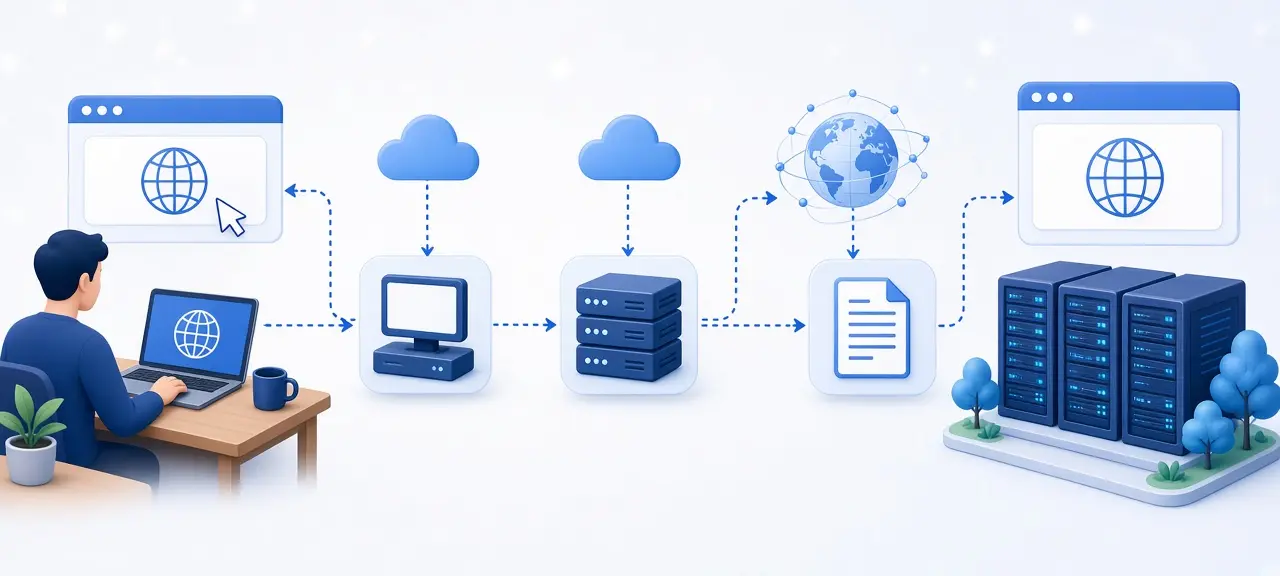

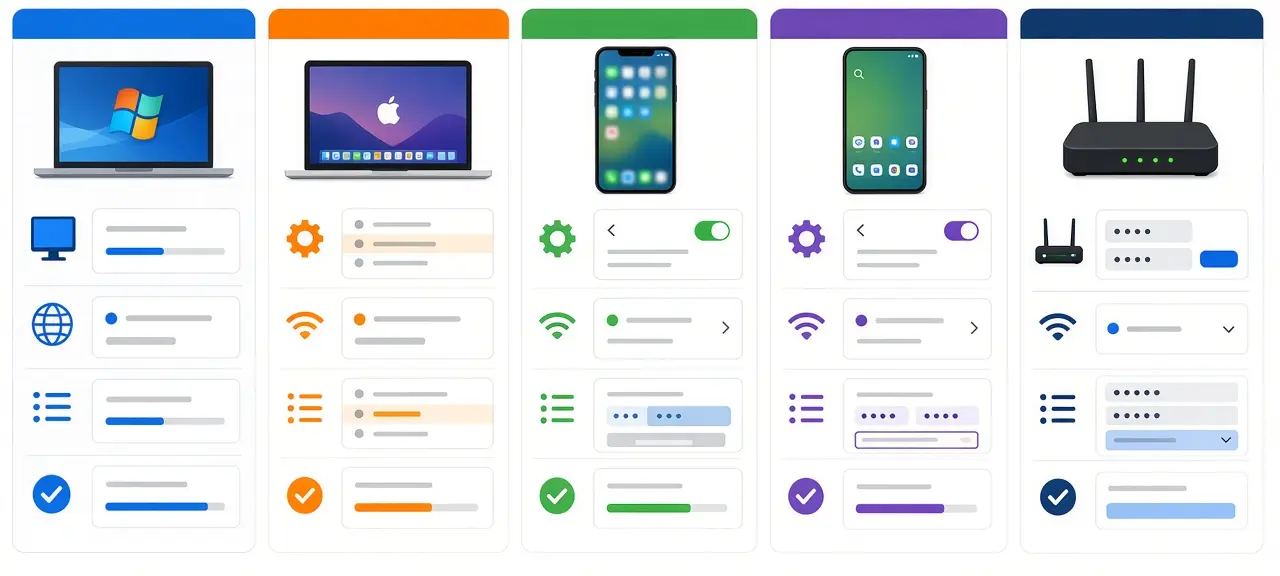
To change your DNS server, open your device's network settings, switch DNS from Automatic to Manual, enter a primary and a secondary DNS address, and save. That is how to change DNS on almost any system; only the menu names differ. Change it on the router and every device on your home Wi-Fi uses the new resolver; change it on one phone or laptop and only that device does; change it in a browser and only that browser does. Each method takes about two minutes, and you can go back to Automatic at any time.
Jump to your device:
- Windows 11
- Windows 10 and command line
- Mac
- iPhone and iPad
- Android
- Router
- Chrome, Edge and Firefox
- Linux
Before you start: pick a DNS server and note your current one
Take a screenshot of your current DNS settings, then pick two addresses from the same provider: one as primary, one as secondary. The screenshot lets you restore the old values exactly. Mixed providers work, but your device may query both, so both privacy policies apply.
Official addresses, checked on 12 October 2026:
| Provider | IPv4 | IPv6 | Android Private DNS hostname | DoH URL | Filtering |
|---|---|---|---|---|---|
| Google Public DNS | 8.8.8.8, 8.8.4.4 | 2001:4860:4860::8888, 2001:4860:4860::8844 | dns.google | https://dns.google/dns-query | None |
| Cloudflare 1.1.1.1 | 1.1.1.1, 1.0.0.1 | 2606:4700:4700::1111, 2606:4700:4700::1001 | one.one.one.one | https://cloudflare-dns.com/dns-query | None |
| Cloudflare for Families (malware) | 1.1.1.2, 1.0.0.2 | 2606:4700:4700::1112, 2606:4700:4700::1002 | security.cloudflare-dns.com | https://security.cloudflare-dns.com/dns-query | Malware |
| Cloudflare for Families (malware and adult) | 1.1.1.3, 1.0.0.3 | 2606:4700:4700::1113, 2606:4700:4700::1003 | family.cloudflare-dns.com | https://family.cloudflare-dns.com/dns-query | Malware and adult content |
| Quad9 | 9.9.9.9, 149.112.112.112 | 2620:fe::fe, 2620:fe::9 | dns.quad9.net | https://dns.quad9.net/dns-query | Malicious domains |
Sources: Google Public DNS, Cloudflare 1.1.1.1 and Quad9 documentation. There is no single best DNS server. To weigh logging, EDNS Client Subnet and lookup speed, compare Google DNS and Cloudflare first.
Router, device or browser: where should you change DNS?
Change DNS on the router if you want every device at home covered with one edit. Change it on a single device if the router locks the DNS field or the device leaves home often. Change it in the browser if you only want encrypted lookups for web pages. A VPN, when switched on, overrides all three.
| Where | What it covers | Good for | Watch out |
|---|---|---|---|
| Router | Every device on your home Wi-Fi or LAN | Family filtering, one change for the whole house | Phones on 4G or 5G skip it; some ISP modems lock the field |
| Device | Only that phone or computer | Laptops that travel; Android Private DNS also covers mobile data | iPhone settings apply to one Wi-Fi network at a time |
| Browser | Only that browser | Encrypted DNS without touching system settings | Apps and other browsers keep the system DNS |
| VPN | Everything while it is on | Whatever the VPN provider configures | Hides the DNS you set elsewhere |
When settings conflict, the most specific one wins. Browser secure DNS beats a DNS address typed into the device, and a device setting beats whatever the router hands out. That order explains most "I changed it but nothing happened" cases.
How to change DNS on Windows 11
On Windows 11, open Settings, go to Network & internet, select Wi-Fi or Ethernet, open your connection's properties, and click Edit next to DNS server assignment. Choose Manual, turn on IPv4, type the Preferred DNS and Alternate DNS addresses, and click Save. The change takes effect at once.
- Press Windows + I, then select Network & internet.
- Select Wi-Fi (or Ethernet) and open the properties of your connection.
- Click Edit next to DNS server assignment and change Automatic (DHCP) to Manual.
- Turn on IPv4 and enter Preferred DNS (for example 1.1.1.1) and Alternate DNS (1.0.0.1). If your line has IPv6, do the same under IPv6.
- Click Save.
Wi-Fi and Ethernet keep separate settings. A laptop that uses both needs the change twice. To undo it, open the same Edit box and pick Automatic (DHCP).
Turn on DNS over HTTPS in Windows 11
Windows 11 can encrypt DNS queries, but only for resolvers on its built-in list of known DNS over HTTPS servers. According to Microsoft Learn, that default list includes the Google, Cloudflare and Quad9 addresses. Run Get-DnsClientDohServerAddress in PowerShell to see it. When you type a listed address, an encryption option appears under it.
The labels vary by build. Microsoft's documentation names three choices: "Encrypted only (DNS over HTTPS)", "Encrypted preferred, unencrypted allowed" and "Unencrypted only". Newer Windows 11 builds show "On (automatic template)" instead, with a "Fallback to plaintext" switch. Fallback to plaintext means Windows sends a normal, readable query when the encrypted one fails. Leave it off if privacy is the reason you are changing DNS.
How to change DNS on Windows 10
On Windows 10, open Control Panel, then Network and Sharing Center, then Change adapter settings. Right-click your connection, choose Properties, select Internet Protocol Version 4 (TCP/IPv4), click Properties, pick "Use the following DNS server addresses", enter both addresses and click OK.
Repeat with Internet Protocol Version 6 (TCP/IPv6) if your connection uses IPv6. This dialog has no encryption option, so use your browser's secure DNS for that. Microsoft ended Windows 10 support on October 14, 2025.
Change DNS with Command Prompt or PowerShell (Windows 10 and 11)
Both tools need an administrator window. First, find your adapter's exact name with netsh interface show interface. It may read "Wi-Fi", "Wi-Fi 2" or "Ethernet".
In Command Prompt, set a primary and a secondary DNS:
netsh interface ip set dns name="Wi-Fi" static 1.1.1.1
netsh interface ip add dns name="Wi-Fi" 1.0.0.1 index=2
Return to automatic DNS with netsh interface ip set dns name="Wi-Fi" dhcp.
In PowerShell, Get-NetIPConfiguration lists adapters and their current DNS. Set both addresses in one line:
Set-DnsClientServerAddress -InterfaceAlias "Wi-Fi" -ServerAddresses 1.1.1.1,1.0.0.1
Undo it with Set-DnsClientServerAddress -InterfaceAlias "Wi-Fi" -ResetServerAddresses.
How to change DNS on a Mac
On a Mac, choose Apple menu, then System Settings, click Network, select your connection, and click Details. Open the DNS tab, click the + button under DNS Servers, type each address, and click OK. Apple's support guide lists these exact steps for current macOS versions.
Entries shown in gray came from your router. To undo, select each address you added and click the minus button. On older macOS versions with System Preferences, the list is under Network, Advanced, DNS.
How to change DNS on iPhone and iPad
On an iPhone or iPad, go to Settings, tap Wi-Fi, tap the (i) next to your network, then tap Configure DNS. Choose Manual, delete the existing entries, tap Add Server to type each new address, and tap Save. The setting belongs to that one Wi-Fi network.
Every saved Wi-Fi network keeps its own DNS, so home and office each need the change. Switch back to Automatic to undo it. Don't confuse this screen with Configure Proxy, which sits just below it and does something else.
What about mobile data?
iOS has no DNS field for 4G or 5G in Settings. To use a different resolver on mobile data, you need a DNS configuration profile or an app from the DNS provider. Install a profile only from the provider's official website. Cloudflare says its 1.1.1.1 app turns on WARP by default, which is more than a DNS change. Installed profiles appear under Settings, General, VPN & Device Management, where you can also remove them.
How to change DNS on Android (Private DNS)
On Android 9 or later, use Private DNS: open Settings, find Private DNS, choose "Private DNS provider hostname", type a hostname such as dns.google or one.one.one.one, and save. Private DNS is encrypted and covers both Wi-Fi and mobile data, so one change protects every network.
On a Google Pixel, the path is Settings, Network & internet, Private DNS. The field takes a hostname, not an IP address. Typing 8.8.8.8 there fails. Use the hostname column from the table above.
Off sends unencrypted queries to the network's DNS, and Automatic encrypts only when that resolver supports it. Google notes that a VPN or a DNS changer app can override Private DNS.
Where is Private DNS on Samsung, Xiaomi and other phones?
Brands move the menu. On Samsung Galaxy phones, it is usually under Settings, Connections, More connection settings, Private DNS. Xiaomi, Redmi, OPPO and other brands place it under connection or network menus, and some name it differently. The fastest route on any brand is the search bar at the top of Settings: type "Private DNS" or "DNS".
Android 8 or older
Older Android versions can only change DNS per Wi-Fi network by switching to a static IP. That means typing the IP address and gateway as well, and one wrong value drops the connection. Changing DNS on the router is safer for these phones.
How to change DNS on your router
To change DNS on a router, log in to its admin page, find the DNS fields under WAN or Internet, or under LAN or DHCP, write down the current values, enter the new primary and secondary addresses, and save. Reconnect your devices so they pick up the change.
- Open the admin page; here is how to log in to your router, with separate guides for VNPT, FPT and Viettel modems in Vietnam.
- Find the DNS fields. Common places are WAN, Internet, LAN or DHCP Server.
- Take a screenshot of the current DNS values.
- Switch from automatic or ISP DNS to manual, and enter the two new addresses.
- Save, restart the router if it asks, then turn Wi-Fi off and on again on your devices.
Google's setup guide notes that some ISPs hard-code DNS servers into the equipment they supply. ISP modems may also hide or lock the DNS field on customer accounts. In that case, change DNS on each device instead.
WAN DNS vs DHCP DNS
WAN DNS is the resolver the router itself uses. DHCP DNS (sometimes LAN DNS) is the address the router hands to your devices. Many routers give devices their own IP as DNS and forward queries to the WAN DNS, so changing WAN DNS covers the house. Others need the DHCP field changed. Check one device after saving.
Don't forget IPv6 DNS
If your ISP gives you IPv6, the router may keep handing out the ISP's IPv6 DNS even after you change the IPv4 fields. Devices prefer IPv6 when they have it, so they keep asking the old resolver. Enter the provider's IPv6 pair in the router's IPv6 settings too, or confirm with the checks below. Not sure if your line uses IPv6? This guide to IPv4 vs IPv6 explains how to tell.
Secure DNS in Chrome, Edge and Firefox
Browsers have their own secure DNS setting, which sends lookups over HTTPS to a provider you choose. It applies only to that browser and overrides the system DNS for web pages. Turn it on in the privacy or security section of the settings menu, then pick a provider or enter a custom DoH URL.
| Browser | Path | Notes |
|---|---|---|
| Chrome (Windows, Mac, Linux) | Settings, Privacy and security, Security, Advanced, Use secure DNS | Pick a listed provider or choose Custom and paste a DoH URL |
| Chrome (Android) | More, Settings, Privacy and security, Use secure DNS | Turn it on, then select your current provider or another one |
| Edge | Settings, then type "secure DNS" in the settings search box | Choose a provider or enter a custom one |
| Firefox | Settings, Privacy & Security, DNS over HTTPS | Levels: Default Protection, Increased Protection, Max Protection, Off |
| Safari | No separate setting | Uses the DNS set on the Mac, iPhone or iPad |
According to Chrome Help, the secure DNS option is unavailable when the device is managed or parental controls are on. Mozilla says Firefox's Default Protection falls back to your normal resolver when there is a problem, while Max Protection always uses secure DNS and warns you if it can't.
Change DNS on Linux with NetworkManager
On desktop Linux with NetworkManager, open the network settings, choose your connection, open the IPv4 tab, turn off automatic DNS, type the addresses and click Apply. Turn the connection off and on to load them. From a terminal, the same change is two commands:
nmcli con mod "Wired connection 1" ipv4.dns "1.1.1.1 1.0.0.1" ipv4.ignore-auto-dns yes
nmcli con up "Wired connection 1"
Replace the connection name with yours from nmcli con show. Google warns that DHCP can overwrite manual edits to /etc/resolv.conf, so change DNS through NetworkManager or systemd-resolved instead.
What is my DNS server? Check which DNS you are using
To see which DNS server your device uses, run ipconfig /all on Windows and read the DNS Servers line, run scutil --dns on a Mac, or run resolvectl status on Linux. On a phone, open the DNS settings: Android shows the Private DNS hostname, iPhone shows the Configure DNS list.
In PowerShell, Get-DnsClientServerAddress prints the DNS list for every adapter. On a Mac, scutil --dns prints several resolver blocks; the nameserver[0] line under resolver #1 is usually the one in use.
To confirm a resolver actually answers, use the provider's own test. Cloudflare's page at one.one.one.one/help reports if you are connected to 1.1.1.1 and if DoH or DoT is active. Google has a test command, explained in the Google DNS guide linked above. CheckIP has no DNS lookup tool. What you can check here is your public IP, which stays the same before and after the change: check your public IP to confirm it.
How to flush the DNS cache after changing DNS
Flushing the DNS cache deletes stored lookups, so the device asks the new server right away instead of reusing old answers. On Windows, run ipconfig /flushdns. On phones, turning airplane mode on and off has the same effect. The other commands are below.
| Device | Command or action |
|---|---|
| Windows | ipconfig /flushdns in Command Prompt |
| macOS | sudo dscacheutil -flushcache; sudo killall -HUP mDNSResponder in Terminal |
| Linux (systemd-resolved) | resolvectl flush-caches |
| Chrome | Open chrome://net-internals/#dns and click Clear host cache |
| iPhone, iPad, Android | Turn airplane mode on and off, or restart the phone |
DNS change not working? Fixes by device
When a DNS change fails, the cause is usually a typo, a setting on another layer that overrides yours, or a network that blocks outside resolvers. Find your symptom in the table, apply the fix, and flush the cache afterward.
| Problem | Likely cause | Fix |
|---|---|---|
| Windows says "DNS server isn't responding" | Typo, or you edited a different adapter than the one in use | Check the adapter name and retype both addresses |
| iPhone still uses the old DNS on 4G | Normal: Configure DNS covers one Wi-Fi network only | Use the provider's profile or app for mobile data |
| Android: "Private DNS server cannot be accessed" | Misspelled hostname, port 853 blocked, or a VPN is on | Retype the hostname, turn off the VPN, or set Private DNS to Automatic |
| Android loses Wi-Fi after setting a static IP | Missing or wrong gateway | Switch the network back to DHCP |
| Router changed, device still uses ISP DNS | IPv6 DNS from the ISP, manual DNS on the device, or browser secure DNS | Add IPv6 DNS on the router, then check device and browser |
| Hotel or cafe Wi-Fi login page won't appear | The login page needs the network's own DNS | Switch to Automatic, log in, then switch back |
| Company laptop resets DNS | Policy set by IT | Ask the administrator |
To go back to default DNS on each device:
- Windows 11: DNS server assignment, Edit, Automatic (DHCP).
- Windows 10: TCP/IPv4 Properties, "Obtain DNS server address automatically".
- Mac: remove the added addresses in Details, DNS.
- iPhone and iPad: Configure DNS, Automatic.
- Android: Private DNS, Automatic or Off.
- Router: restore the values from your screenshot, or select automatic DNS.
- Browser: turn off secure DNS.
Frequently asked questions
Is it safe and legal to change DNS?
Yes. DNS is a normal network setting, and using an official resolver address does not harm your device. Workplace and school networks may forbid outside resolvers, so follow their rules. Changing DNS is not a way to reach blocked sites, and CheckIP does not give instructions for that. The real risks are unknown "DNS changer" apps and addresses shared by strangers, which can send you to fake pages.
Does changing DNS change my IP address?
No. Your ISP assigns your public IP, and websites see the same address no matter which resolver looked up their name. DNS only decides who translates domain names for you. If you need a new address, follow the steps to change your IP address on a router, computer or phone.
Will changing DNS make my internet faster?
Only the lookup step can get faster, and that step usually takes milliseconds per site. Download speed depends on your plan and line, so a speed test before and after a DNS change normally shows nearly the same numbers. A new resolver helps most when your ISP's DNS times out or fails to resolve some domains.
Do I need to restart after changing DNS?
Usually not. Windows, macOS, iOS and Android apply new DNS settings as soon as you save. Old answers can stay in the cache for a while, so flush it or reconnect to the network. A router may ask for a restart.
Should I change DNS on the router or on each device?
Use the router when you want one change for every phone, TV and laptop at home, such as a family filter. Use each device when the ISP modem locks the DNS field, when a laptop moves between networks, or when you want encryption through Android Private DNS or Windows 11 DoH.
What does DNS do in the first place?
DNS turns a name like checkip.day into the IP address your device connects to. Your device asks a resolver for that answer before almost every new connection. For the full picture of resolvers, record types and caching, read what DNS is and how it works.