
To log in to your router, connect to its Wi-Fi or plug in a cable, open a browser, type the router's IP address (usually 192.168.1.1, 192.168.0.1 or 10.0.0.1) into the address bar, then enter the admin username and password printed on the router's label. That is my router login in one sentence, on a laptop or a phone. If none of those addresses opens a page, the right one is your device's "default gateway". Below you'll see how to find it on any device, the default login for each big brand with its official support page, and fixes for a login page that won't load.
Quick answer in 4 steps:
- Connect your phone or computer to the router's Wi-Fi or a LAN port.
- Open Chrome, Safari or Edge.
- Type the address from the router's label (or your default gateway) into the address bar.
- Enter the admin username and password.
What you need before you log in to your router
To open the router admin page, you need a device connected to that router, the router's login address and its admin password. The internet does not have to work.
- A phone or computer on the router's Wi-Fi, or plugged into a LAN port with an Ethernet cable.
- VPN and proxy turned off. Many VPN apps send all traffic through a tunnel, so the browser never reaches your router.
- Mobile data turned off on a phone.
- The label on the bottom or back of the router, which usually lists the login address, admin password, Wi-Fi name and Wi-Fi password.
Those are two different passwords. The Wi-Fi password lets a device join the network, and the Wi-Fi name is its SSID (here is what an SSID is). The admin password opens the settings. Only log in to a router you own or have the owner's permission to manage.
How to log in to your router, step by step
To log in to a router, type its local address into the browser's address bar, not into the Google search box, and sign in with the admin account. With the right address, the whole login to router process takes about a minute, and the steps are the same for any router login.
- Connect to the router by Wi-Fi or cable.
- Open a browser.
- Click the address bar and type the address exactly, for example 192.168.0.1. Don't add "www." to an IP address.
- Press Enter.
- Type the admin username and password. Many routers only ask for the password.
- The admin dashboard opens. Brands call it the web interface, admin tool or wifi admin page.
Your browser may show "Your connection is not private" first. That is normal: TP-Link's support page explains that routers use a self-signed certificate, so the browser warns even though the connection is safe. Click Advanced, then proceed to the address you typed.
New or freshly reset routers often skip the old default password. Newer TP-Link models and ASUS routers make you create an admin password at first sign-in, and so does Xfinity for customers who turned on Admin Tool access after February 2026.
On a phone, it works the same way in Safari or Chrome. Most brands also have an app (TP-Link Tether, NETGEAR Nighthawk, ASUS Router, Xfinity) for common settings.
Common router login addresses
Most home routers use 192.168.1.1, 192.168.0.1 or 10.0.0.1 as their router address. All three sit in the private ranges reserved by RFC 1918, so millions of homes share them without clashing. The table shows which brands use which address, according to each maker's support pages.
| Address | Often used by | Source |
|---|---|---|
| 192.168.1.1 | Linksys; some NETGEAR models; many ISP modems | Linksys KB 73, NETGEAR UK router login guide |
| 192.168.0.1 | TP-Link; some NETGEAR models | TP-Link FAQ 87, NETGEAR UK router login guide |
| 10.0.0.1 | Xfinity (Comcast) gateways | Xfinity "Admin Tool access" article |
| 192.168.50.1 | ASUS (the example ASUS gives) | ASUS FAQ 1005263 |
| 192.168.1.254 | AT&T gateways (Motorola NVG and 2Wire/Pace models) | AT&T Business internet support article |
| tplinkwifi.net, routerlogin.net, asusrouter.com, myrouter.local | TP-Link, NETGEAR, ASUS, Linksys | Same brand pages as above |
The address on your label, or your device's default gateway, always beats any table.
What is my router's IP address? Find the default gateway
Your router's IP address is the "default gateway" your device uses to reach the internet. So the answer to "what is my IP address for my router" is that gateway number, for example 192.168.1.1, shown in every device's network settings. It is a private address that works only inside your home; websites see your public IP instead.
Windows
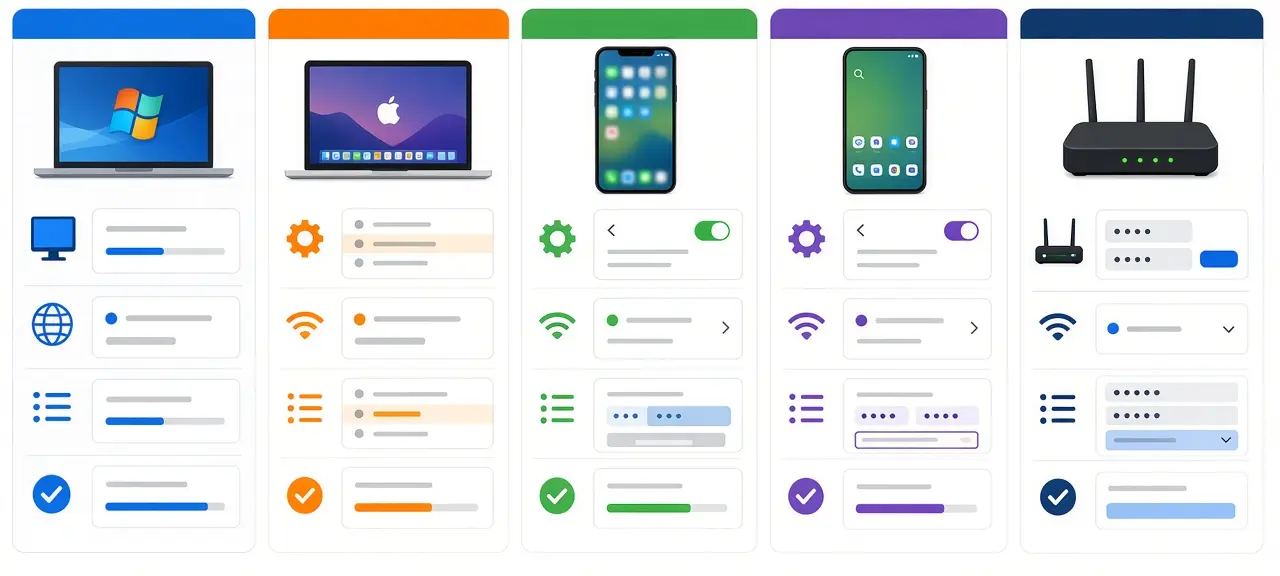
Press Windows + R, type cmd and press Enter. Type ipconfig and press Enter, then find "Default Gateway" under your Wi-Fi or Ethernet adapter. That number is my router IP on Windows. Our guide to find your IP address on any device has screenshots for every system.
Mac
Open System Settings, click Wi-Fi, then Details next to your network, and open TCP/IP. The "Router" line shows the address. In Terminal, route -n get default prints it on the "gateway" line.
iPhone and iPad
Go to Settings, tap Wi-Fi, then the (i) button next to your network, and read the "Router" line. To see the phone's own address as well, here is how to find the IP address on your phone.
Android
Open Settings, go to Wi-Fi or Internet, and tap the network you're on (or the gear icon next to it). Look for Gateway or Router. Samsung, Pixel and Xiaomi phones name these menus differently.
Linux and ChromeOS
On Linux, run ip route | grep default. The output reads like "default via 192.168.1.1", and that number is the gateway. On a Chromebook, open Settings, then Network, click your Wi-Fi network and find the Gateway field.
My router login by brand
Each brand has its own login address and default account. This table lists only what each maker's official support page states, checked in October 2026. For other brands, use the router's label or manual, not generic "admin/admin" lists found online.
| Brand | Login address | Default login | Official source |
|---|---|---|---|
| TP-Link | tplinkwifi.net or 192.168.0.1 | Newer models: create a password at first login. Older models: admin / admin | TP-Link FAQ 87 |
| NETGEAR | www.routerlogin.net or www.routerlogin.com | admin / password (until changed) | NETGEAR KB 20026 |
| ASUS | www.asusrouter.com or the LAN IP (e.g. 192.168.50.1) | Some models: admin / admin. Others: on the label | ASUS FAQ 1005263 |
| Linksys | https://192.168.1.1 or myrouter.local | Password: admin (unconfigured router) | Linksys KB 73 |
| Xfinity | http://10.0.0.1 (home network only) | Username: admin. Password: the label, or one you create in the Xfinity app | Xfinity Admin Tool access |
TP-Link login (tplinkwifi.net or 192.168.0.1)
Type tplinkwifi.net or 192.168.0.1. If neither loads, TP-Link's FAQ suggests 192.168.1.1. Older models show the fields filled with admin; newer ones never use admin/admin and ask you to create a password. TP-Link offers its Tether app as a phone alternative to the browser.
NETGEAR router login (routerlogin.net)
For a NETGEAR router login, open www.routerlogin.net or www.routerlogin.com. According to NETGEAR's knowledge base, the NETGEAR default login is admin and the NETGEAR default password is password, until you set your own. When routerlogin.net does not work, your device is usually on another network. NETGEAR's guide says to check the network, clear the browser cache and try the IP (commonly 192.168.1.1 or 192.168.0.1). NETGEAR recommends the Nighthawk app.
ASUS router login (asusrouter.com)
The ASUS router login address is www.asusrouter.com or the router's LAN IP, such as 192.168.50.1. Typing "router.asus.login" won't work, because that isn't an address ASUS gives. The ASUS default login on some models is admin / admin; others print it on a sticker. After setup or a reset, ASUS makes you create a new account.
Linksys login (myrouter.local or 192.168.1.1)
Linksys lists https://192.168.1.1 and myrouter.local. An unconfigured router accepts admin as the password. If a page asks you to sign in to a cloud account, Linksys says to click "For local access, click here" to reach the local login.
Xfinity gateway login (10.0.0.1)
The Xfinity default router login is at http://10.0.0.1, and only from your home network. The username is always admin. If you turned on access before February 2026, use the password on the gateway's sticker. Otherwise the 10.0.0.1 login page stays locked until you allow it in the Xfinity app: WiFi tab, View WiFi equipment, Advanced settings, Admin Tool online access. Switch on Allow Admin Tool access, save, and create a password.
eero and Google Nest Wifi
The support pages for eero and Google Nest Wifi describe managing these mesh systems in a phone app (the eero app and the Google Home app), with no browser login page like the ones above.
Router login for Viettel, VNPT and FPT (Vietnam)
Modems from Vietnam's three big ISPs have their login address, username and password on a label on the bottom. Check that label first, because each ISP uses several modem brands. With the user account on the label, some menus may be locked.
VNPT
VNPT installs fiber modems from several makers, and login details differ by model. Read the address and account from the label, then type that address into the browser. Model-by-model steps are in our VNPT router login guide.
FPT
FPT Telecom modems also carry login details on the label. FPT customers can change common Wi-Fi settings, such as the network name and password, in the Hi FPT app. The full steps are in our FPT router login guide.
Viettel
Viettel modems work the same way: the label shows the address and account. Viettel customers can also change the Wi-Fi password and restart the modem on viettel.vn. The My Viettel app closed on 1 October 2026; its services moved to the Viettel Tammi app. Our Viettel router login guide covers the admin page step by step.
Many homes add a TP-Link router behind the ISP modem. Your phone talks to whichever device it's connected to, so check its default gateway to see which one you're logging in to.
Forgot your router password?
If you forgot the router's admin password, try the one on the label first. If someone changed it, the only fix is a factory reset. TP-Link, NETGEAR, ASUS and Linksys all say a reset is the way back in.
To find the router username and password, work through these steps in order:
- Read the label under the router.
- Ask whoever set it up, or your ISP if they installed it.
- Reset the router. On ASUS, hold the reset button for at least 5 seconds, until the power light flashes. Other brands differ, so follow the manual.
- Log in with the label password, or create a new one when asked.
A reset erases every setting, including the Wi-Fi name and port forwards. On an ISP modem it can also erase the internet settings (such as PPPoE login or VLAN), and the connection stops until they're entered again. Call your ISP before you reset their equipment.
Can't access the router login page? Fixes that work
Most login failures come from a wrong address, a device on the wrong network, or a changed password.
| Problem | Likely cause | Fix |
|---|---|---|
| "This site can't be reached" | Wrong address, VPN on, or phone on mobile data | Check the default gateway, turn off VPN and mobile data |
| Google results instead of the router | Address typed into the search box | Type it in the address bar at the top |
| "Incorrect password" | Someone changed the admin password | Ask whoever set it up, or reset |
| Device has a 169.254.x.x address | It got no address from the router (DHCP failed) | Restart the router, then reconnect |
| Gateway outside the router's range | Static IP set by hand on your device | Switch network settings back to automatic (DHCP) |
| Security warning blocks the page | Self-signed certificate | Click Advanced and proceed, or try another browser |
The 169.254 range is the link-local block defined in RFC 3927. A device picks one of these addresses when no router answers, so it points to a connection problem, not a login problem.
Typos: 192.168.l.1, 10.0.0.0.1 and 10.0.01
Searches like "192.168.l.1 admin login" are usually typos. An IPv4 address has exactly four numbers from 0 to 255, separated by three dots, and never contains letters.
- 192.168.l.1 uses a lowercase L instead of 1. Type 192.168.1.1 to reach the 192.168.1.1 admin page.
- 192.168.o.1 uses the letter o instead of zero. The 192.168.0.1 login page needs a zero.
- 10.0.0.0.1 has five numbers. Type 10.0.0.1.
- 10.0.01 is missing a dot. Type 10.0.0.1.
Two routers in one home (double NAT)
Double NAT means one router sits behind another, such as a TP-Link router plugged into an ISP modem. Your phone joins the TP-Link at 192.168.0.1, while the modem behind it is at 192.168.1.1. From the phone, only the first opens. To reach the modem, plug a laptop into one of its LAN ports.
If the fiber modem's LOS light is red, the problem is the ISP's line, and logging in won't fix it.
What to do after you log in
Change the default admin password first. Anyone on your Wi-Fi can try the password printed on the label. Then pick the job you came for:
- Change the Wi-Fi name and password in the Wireless section.
- Open the connected devices or DHCP client list to see who is on your network, and block devices you don't recognize.
- Set up port forwarding for a game server or camera, then check if the port is open.
- Update the firmware, and turn off remote management and WPS if you don't use them.
The status page also shows the WAN IP your ISP gave the router. Compare it with your public IP on CheckIP. If they differ, your ISP may use carrier-grade NAT; a WAN IP from 100.64 to 100.127 is a strong sign, since RFC 6598 reserves 100.64.0.0/10 for it. Port forwarding won't work from outside until the ISP gives you a public address.
Frequently asked questions
What is my router login?
Your router login is the address, username and password printed on the label under the router. Common addresses are 192.168.1.1, 192.168.0.1 and 10.0.0.1. With no label, use the default gateway from your device's network settings as the address, and check the maker's support page for the default account.
Is the router password the same as the Wi-Fi password?
No. The Wi-Fi password lets phones and laptops join your network. The admin password opens the settings page where you change things, including the Wi-Fi password itself. Labels often print both on separate lines. Changing one does not change the other.
Do I need internet to log in to my router?
No. The admin page runs on the router itself, inside your home network. You only need a device connected to it by Wi-Fi or cable. That's why logging in is a good first step when the internet is down: the status page shows whether the router can reach your ISP.
Can I log in to my router from my phone?
Yes. Join the router's Wi-Fi, turn off mobile data, open Safari or Chrome and type the router address. The admin page may look small on a phone screen. Most brands also offer an app, such as TP-Link Tether, NETGEAR Nighthawk or the Xfinity app, built for small screens.
Why does routerlogin.net or tplinkwifi.net not work?
These names only work while you're connected to a router of that brand. On another network, on mobile data or with a VPN on, the browser can't find them. Join the right Wi-Fi, turn off the VPN, and if the page still fails, type the router's IP address, such as 192.168.1.1 or 192.168.0.1.
Is a router the same as a modem?
No. A modem connects your home to the ISP's line (cable, fiber or DSL). A router shares that connection between your devices and creates the Wi-Fi network. Many ISPs supply one box that does both jobs, which is why the words get mixed up. Each device has its own login page. Our guide on what a router is explains the difference in more detail.