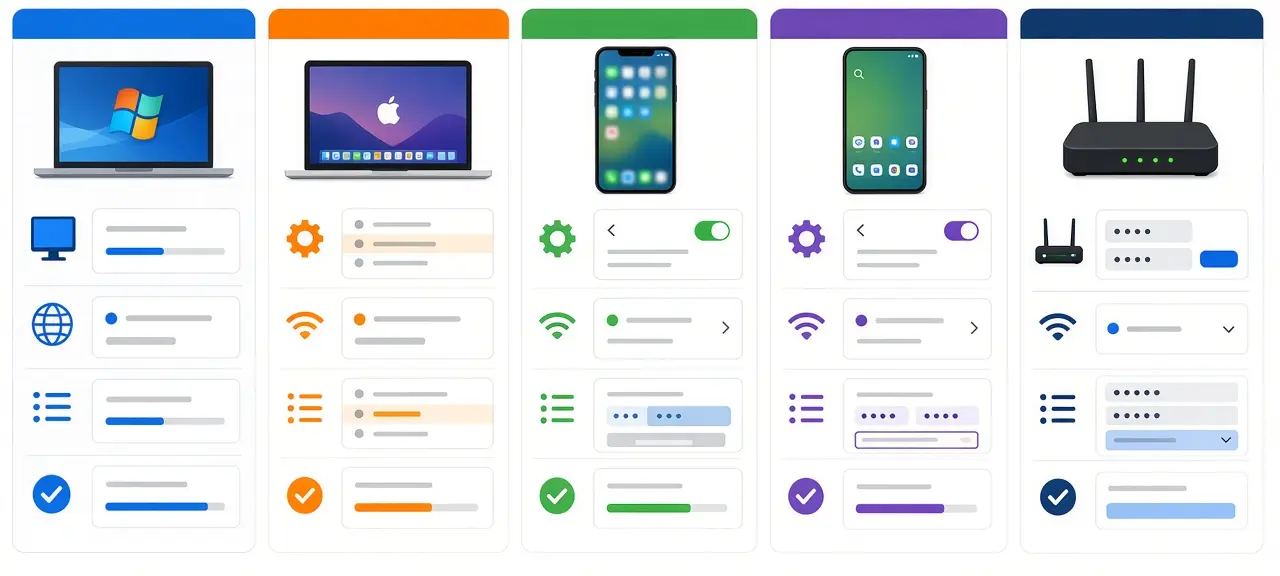

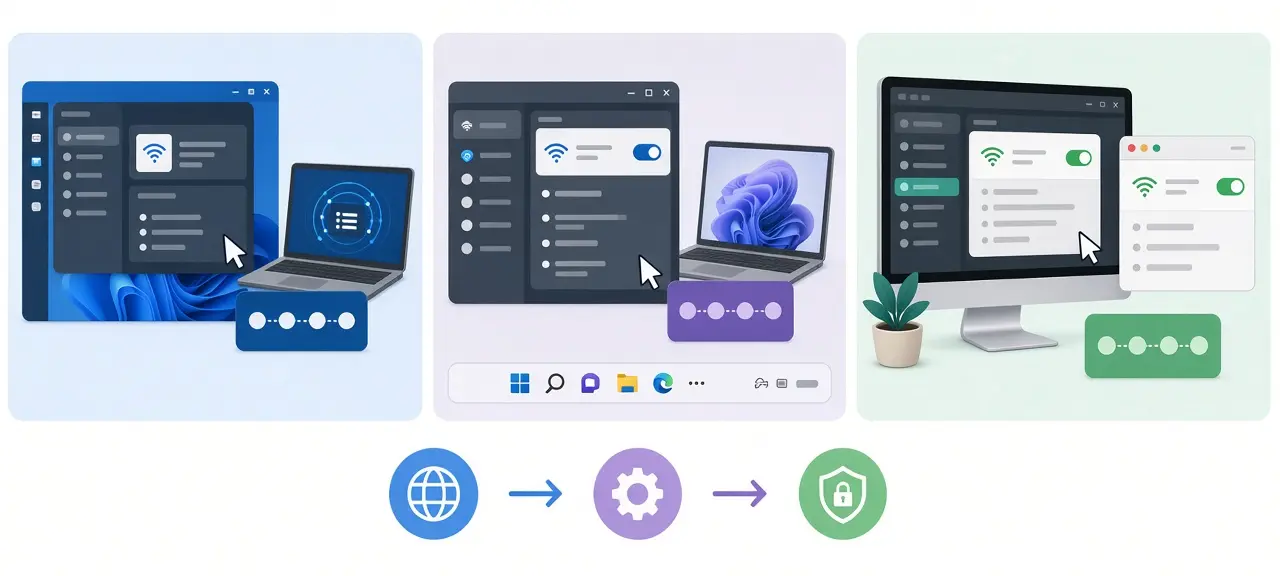
The fastest way to see your public IP address is to open the CheckIP homepage: the number appears at the top of the page as soon as it loads. If you are asking how to find my IP address for a printer, a security camera or a game server on your home network, you need a different number, the private IP address, and that one lives in your device's network settings. The public IP is what websites see and is shared by every device behind your router. The private IP is the local number your router hands to each phone, laptop or TV, usually starting with 192.168, 10 or 172.16 to 172.31. The steps below cover both on Windows 11, Windows 10, macOS, iOS, Android, ChromeOS and Linux. Menu paths were checked against Microsoft, Apple and Google support pages in October 2026.
Find your public IP address in one click
To see your public IP address, open see your public IP instantly on checkip.day in any browser. The page reads the address your connection uses to reach the internet and shows it without any sign-up. This works the same on a PC, a Mac, a phone or a tablet.
The public IP is assigned by your internet provider, not by your device. Two laptops on the same home Wi-Fi will show the same public IP on CheckIP. If you switch your phone from Wi-Fi to mobile data, the number changes because a different network is now carrying your traffic. A VPN also changes it, since websites then see the VPN server's address instead of yours. If you are new to the topic, our guide on what an IP address is explains how these numbers are built and assigned.
How to find your IP address on Windows 11 and Windows 10
On Windows 11 and Windows 10, the IP address of my PC question has three quick answers: the Settings app, the ipconfig command in Command Prompt, or PowerShell. Settings is easiest for most people. The command line is faster once you know it and also shows your router's address on the same screen.
Using Settings
According to Microsoft Support, the path is the same on both versions:
- Select Start, then Settings, then Network & internet (Windows 10 labels it Network & Internet).
- For a wireless connection, select Wi-Fi and then the network you're connected to. For a cable, select Ethernet.
- Look for the number next to IPv4 address.
On Windows 11 you can also select Properties next to your connected network at the top of the Network & internet page. That shortcut opens the same details screen in one click. Right-clicking the Wi-Fi or network icon on the taskbar and choosing Network and internet settings gets you to the same page.
Using Command Prompt and ipconfig
Press Windows + R, type cmd and press Enter. In the black window, type ipconfig and press Enter. Windows lists every network adapter. Find the one you're actually using, usually "Wireless LAN adapter Wi-Fi" or "Ethernet adapter Ethernet", and read the line "IPv4 Address". It looks like 192.168.1.23. The same block also shows "Subnet Mask" and "Default Gateway". Adapters marked "Media disconnected" aren't in use and can be ignored. Run ipconfig /all if you also need the MAC address (listed as "Physical Address") or the DNS servers.
Using PowerShell or Task Manager
In PowerShell, run Get-NetIPAddress -AddressFamily IPv4 to list every IPv4 address on the PC with its interface name. The entry with the interface alias "Wi-Fi" or "Ethernet" is the one you want; 127.0.0.1 is the loopback address and doesn't identify your PC on the network. Without typing anything, open Task Manager with Ctrl + Shift + Esc, go to the Performance tab and select Wi-Fi or Ethernet. The IPv4 and IPv6 addresses are printed under the live traffic graph.
How do I find my IP address on a Mac?
On a Mac running macOS Ventura or later, choose Apple menu, then System Settings, click Network in the sidebar, click the active service (Wi-Fi or Ethernet), then click Details. The IP address is shown in the TCP/IP tab, along with the subnet mask and the router address.
That path matches Apple's guide to TCP/IP settings on Mac, which also lists the IPv6 section on the same tab. A shorter route on recent versions is to hold the Option key and click the Wi-Fi icon in the menu bar. The drop-down then shows the IP address and router address for the network you're on. Older Macs with System Preferences (macOS Monterey and earlier) show the IP address directly on the Network pane.
From Terminal, run ipconfig getifaddr en0. It prints just the address, for example 192.168.0.14. On most MacBooks en0 is the Wi-Fi interface. On a desktop Mac with an Ethernet cable, en0 is often the wired port, so try ipconfig getifaddr en1 if the first command returns nothing.
How to find your IP address on iPhone and Android
On an iPhone or iPad, open Settings, tap Wi-Fi, then tap the More Info button (the small "i" in a circle) next to your network to see the IP Address. On Android, the IP is under Settings, then Network & internet, then Internet (on Samsung: Settings, then Connections, then Wi-Fi), or in About phone, then Status. For brand-by-brand steps, the mobile data IP and the iPhone Private Wi-Fi Address, see our guide to finding the IP address on your phone.
How to find your IP address on Chromebook and Linux
On a Chromebook, select the time at the bottom right, select the Wi-Fi network, then select Information (the "i" icon) at the top of the box. Your IP address and IPv6 address appear there. On Linux, run ip addr or hostname -I in a terminal.
The Chromebook steps come from Google's Chromebook Wi-Fi help page, which also notes that the MAC address appears on the same panel, labeled "Wi-Fi". On Linux, hostname -I prints only the addresses, separated by spaces, which is handy in scripts. The longer ip addr output groups addresses by interface: look for the line starting with "inet" under your active interface (names like wlan0, wlp2s0 or enp3s0). The "inet6" lines are your IPv6 addresses. Ignore the "lo" interface, which only holds 127.0.0.1.
How to find your router's IP address (default gateway)
Your router's IP address is the default gateway, the address every device on your network sends traffic to before it leaves the house. On Windows, run ipconfig and read the "Default Gateway" line. On a Mac, run route get default in Terminal and read the "gateway" line.
You need this number to open the router's admin page in a browser, for example to change the Wi-Fi password or forward a port for a game. Common defaults are 192.168.1.1, 192.168.0.1 and 10.0.0.1, but the real value depends on the router model and your provider, so read it from your device rather than guessing. Phones show it too: iPhone lists it as Router on the Wi-Fi details screen, and stock Android lists it as Gateway in the network details. On Linux, ip route prints it on the line that starts with "default via".
Why your IP looks different on CheckIP and in Settings
CheckIP and your device's settings show different numbers because they report two different addresses. Settings shows the private IP your router assigned to the device. CheckIP shows the public IP your internet provider assigned to the router. Both are correct.
The router uses network address translation (NAT) to let many devices share one public address. When your laptop at 192.168.1.23 loads a website, the router swaps that private address for its public one, then routes the reply back to the laptop. The private ranges are reserved by RFC 1918: 10.0.0.0 to 10.255.255.255, 172.16.0.0 to 172.31.255.255, and 192.168.0.0 to 192.168.255.255. These addresses are reused in millions of homes and never travel across the internet.
So which one should you give out? Use the private IP for anything inside your home: printers, NAS drives, smart TVs and port forwarding rules. Use the public IP when someone outside your network needs to reach you, or when a support agent asks for the address websites see.
Frequently asked questions
What is my IP address on mobile data?
Turn off Wi-Fi and open checkip.day; the number shown is the IP your carrier assigned. Phone settings usually don't display it, and it often changes when the phone reconnects. The phone guide linked in the iPhone and Android section above covers mobile data IPs and carrier-grade NAT.
How do I find the IP address of another device on my network?
Log in to your router's admin page through the default gateway address and open the list of connected or DHCP clients. It shows each device's name, IP address and MAC address. Printers and smart TVs also show their own IP in their network menu, and many printers can print a configuration page that includes it.
Does my IP address change every day?
It depends on the address. Home internet providers assign most public IPs dynamically, so the number can change when the router restarts or the lease expires, but some stay the same for weeks. Private IPs from your router can also change after a reboot. To keep one fixed, set a DHCP reservation for that device in the router.
How do I find my IPv6 address?
Use the same screens as for IPv4. On Windows, ipconfig shows an "IPv6 Address" line if your provider supports IPv6. Lines labeled "Link-local IPv6 Address" start with fe80 and only work on the local network. A Mac shows IPv6 in the TCP/IP tab, and iPhone shows an IPv6 section under the Wi-Fi details.