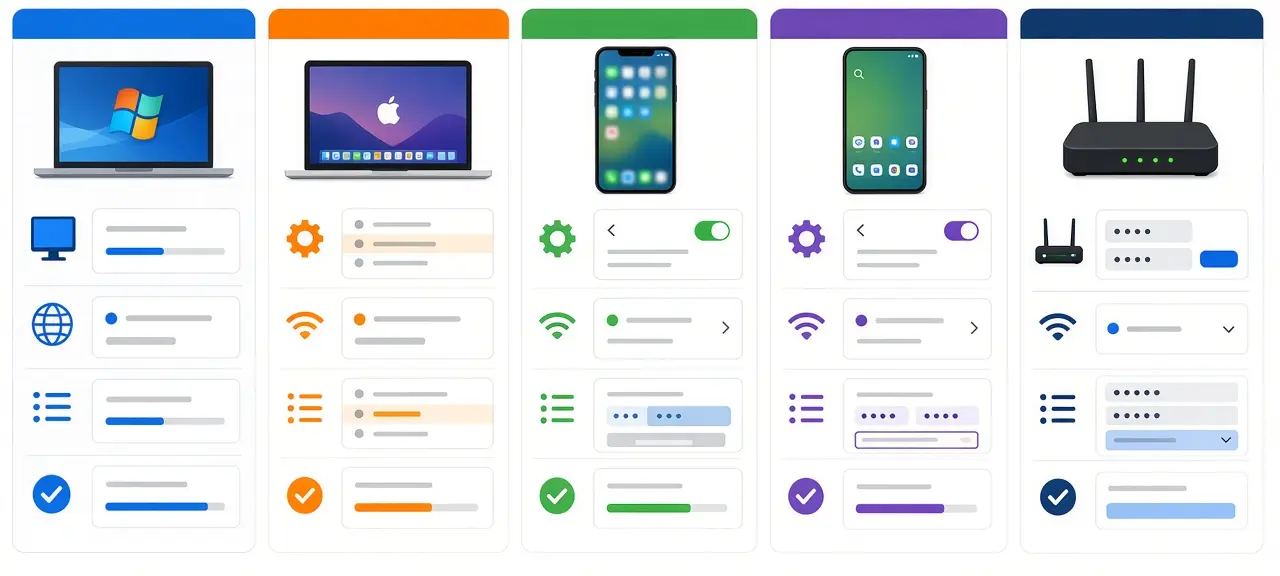

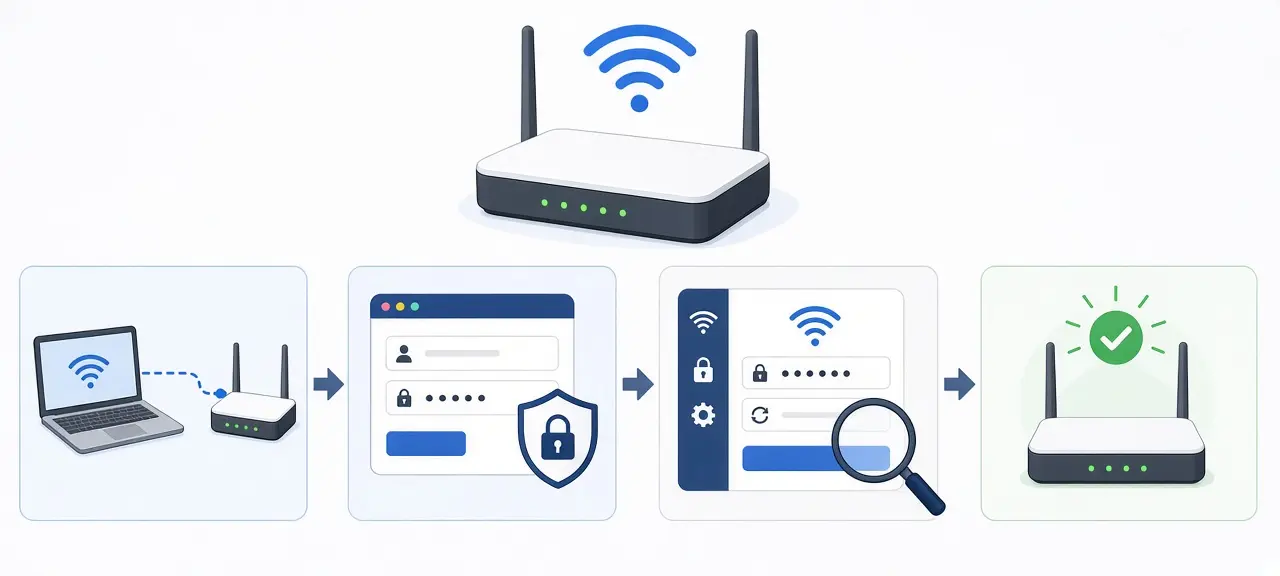
To change the Wi-Fi password on a router, log in at the address on its label (usually 192.168.0.1 or 192.168.1.1), open the Wireless or Wi-Fi settings, type a new password in the box called Password, Network Key or Pre-Shared Key, then save and reconnect your devices. The steps are the same for every brand. Many routers and providers also have an app that skips the admin page. If you've never opened the settings page, first see how to log in to your router. Only change a network you manage.
How to change the Wi-Fi password on a router in 6 steps
Changing the Wi-Fi password on a router takes six steps and about five minutes. You need a connected device, the admin login and a new password of at least 8 characters. The admin login is printed on the router label; if it's missing, ask whoever set up the router or call your provider.
- Connect to the router by Wi-Fi or with an Ethernet cable.
- Open a browser and type the router's address into the address bar.
- Sign in with the admin username and password from the label.
- Open the Wireless, Wi-Fi or Wireless Security section.
- Delete the old password and type the new one.
- Click Save or Apply, then join the network again with the new password.
Saving kicks every device off the Wi-Fi, including the one you're using, so the page may freeze after you click Save. That's expected.
Dual-band routers can have one password box for 2.4 GHz and another for 5 GHz. If your router broadcasts two names, change both, or one band stays open with the old key. Our page on Wi-Fi network names (SSID) explains why some routers show two names.
Change Wi-Fi password at 192.168.1.1, 192.168.0.1 or 10.0.0.1
For a 192.168.1.1 change password job, the steps are the ones above; only the address differs. A router address is always four numbers separated by three dots.
- 192.168.0.1: TP-Link and D-Link routers, according to both brands' support pages.
- 192.168.1.1: many ISP modems, including Viettel, VNPT and FPT modems in Vietnam.
- 10.0.0.1: Xfinity gateways, according to Xfinity's Admin Tool page.
- 192.168.100.1 or 192.168.254.254: type them exactly if your label shows one.
Searches like "192 l 168.1 1 password change" are typos. A router address never contains the letter L or a space.
Where the Wi-Fi password setting is on TP-Link and D-Link routers
On TP-Link routers the Wi-Fi password is under Wireless, then Wireless Settings, or Basic, then Wireless (one box per band). On D-Link mydlink routers it's the Network Key box on the Configure page. Menus change with firmware, so this table lists only paths from each brand's support page, checked in October 2026.
| Router | Where to look | Source |
|---|---|---|
| TP-Link (most models) | Wireless > Wireless Settings, box "Password" | TP-Link FAQ 399, updated April 17, 2026 |
| TP-Link (older models) | Wireless Security, box "Wireless Password" | TP-Link FAQ 399 |
| D-Link DIR-605L | Configure, AUTO-WPA/WPA2, box "Network Key", Save | D-Link FAQ for DIR-605L |
| D-Link with mydlink | mydlink.com > My Devices > router > Settings > Basic Settings | D-Link FAQ for DIR-605L |
TP-Link also opens at tplinkwifi.net. On other brands, look for a menu named Wireless, Wi-Fi, WLAN or Security, and a box labeled Password, Passphrase or Pre-Shared Key.
Can I change my Wi-Fi password from my phone?
Yes. You can change the Wi-Fi password from a phone in two ways: open the router address in Safari or Chrome while connected to that Wi-Fi, or use the router maker's or internet provider's app. Neither needs a computer, and a provider app usually works when you're away from home.
In the browser, follow the six steps above with mobile data off. Turn the phone sideways; admin pages are built for desktops.
TP-Link says its Tether app can update the Wi-Fi password and show connected devices. For a mesh system, change the password in the mesh app (TP-Link's is Deco). A mesh network has one password, so you change it once, not on each unit.
Changing your Wi-Fi password in Vietnam: Viettel, VNPT and FPT
Viettel, VNPT and FPT each offer an app or web page that changes the Wi-Fi password without the 192.168.1.1 admin page. You sign in with the account tied to the internet contract. In rentals that is often the landlord's phone number, so ask the landlord.
Viettel: the My Viettel app closed on October 1, 2026, and its services moved to the Viettel Tammi app, which covers fixed internet, according to My Viettel's Google Play listing. Viettel also has a Wi-Fi management page at viettel.vn/quan-ly-wifi with a change-password option for each network. Admin page details are in our Viettel router login guide. Screens for each method are in our guide on how to change your Viettel Wi-Fi password. Support: 18008119.
VNPT: use the My VNPT app, under Modem Wifi, according to VNPT's guide on Digishop. The app account must be linked to a VNPT internet subscription. The full path is in our VNPT router login guide and in how to change your VNPT Wi-Fi password. Support: 18001166.
FPT: the Hi FPT app manages the modem and Wi-Fi remotely, according to its Google Play listing. On the web page, FPT's G-97D2 guide puts the password under Wireless Security. More in our FPT router login guide, and every step is in how to change your FPT Wi-Fi password. Support: 1900 6600.
How to pick a strong Wi-Fi password
A strong Wi-Fi password has at least 12 characters and nothing a neighbor could guess: no names, birthdays, phone numbers or house numbers. The IEEE 802.11 standard allows 8 to 63 characters for a WPA2-Personal password, and TP-Link recommends 12 to 16. Three or four random words joined together are long and easy to read out to guests.
Check the security mode next to the password box. Pick WPA3-Personal, or WPA2/WPA3 if your router lists it, and WPA2 with AES at minimum. Skip WEP and the original WPA. The Wi-Fi Alliance says WPA3-Personal gives "increased protections from password guessing attempts." Some routers call the Wi-Fi password a WPA2 key or network key. If an older TV won't connect after the switch to WPA3, TP-Link suggests WPA2/WPA3 transition mode.
After you change it: reconnect phones, TVs, cameras and smart plugs
After a Wi-Fi password change, phones and laptops ask for the new password, but cameras, smart plugs and TVs often just go offline. TP-Link notes that smart home devices "may need to be reconfigured manually through their own apps." List these devices before you change anything.
- Phone or laptop says "incorrect password": choose Forget this network, then join again.
- Cameras and smart plugs: run the Wi-Fi setup again in the maker's app. Some cameras only support 2.4 GHz.
- TV or printer: open its network settings and pick your Wi-Fi again.
A Wi-Fi password QR code saves typing on Android. Google's help page gives the path: Settings, Network & internet, Internet, tap your network, then Share. On iPhone, Apple's method works between nearby Apple devices: the other person taps your network name, and your unlocked iPhone offers Share Password. Both people need each other in Contacts. Once everyone is back online, check the device list to see who is on your Wi-Fi.
Wi-Fi password vs router admin password
The Wi-Fi password lets devices join your network. The router admin password opens the settings page. They are separate, so changing one leaves the other as it was. Most people asking how to change a router password mean the Wi-Fi password, but the admin one needs changing too.
| Wi-Fi password | Admin password | |
|---|---|---|
| What it does | Lets a device join the Wi-Fi | Opens the router's settings |
| Who needs it | Everyone at home, guests | Only whoever manages the router |
| Where you change it | Wireless or Wi-Fi settings | System or administration settings |
TP-Link advises changing the default admin login as well. Anyone who sees the label can read it. To change the router name and password together, edit the network name box on the same Wireless page. If you've lost the admin password, a factory reset is the last resort; on an ISP modem it can erase the internet settings, so call the provider first.
Wi-Fi password change not working? Common fixes
Most failed Wi-Fi password changes come from a password the router rejects, a device holding the old one, or a change made on the wrong band or box. A few come from provider apps that can't see the modem. Each has a quick fix.
| Problem | Likely cause | Fix |
|---|---|---|
| Save shows an error | Under 8 characters, or accented letters | Use 8 to 63 plain characters |
| "Incorrect password" after the change | Device saved the old password | Forget the network, join again |
| Old password still works | Only one band changed, or changed on a mesh unit or second router | Change both bands on the device that broadcasts your Wi-Fi |
| Provider app can't find the modem | Contract in someone else's name | Ask the contract holder, or call Viettel 18008119, VNPT 18001166, FPT 1900 6600 |
| Camera offline | Camera still has the old password | Run Wi-Fi setup in the camera app |
Frequently asked questions
How often should I change my Wi-Fi password?
Change it when a former tenant or guest knows it, when you spot a device you don't recognize, and after a new install. TP-Link suggests every three to six months for home networks. To remove one stranger without changing the password, you can block a device from your Wi-Fi.
Do I need my current Wi-Fi password to change it?
No. You need the router's admin login or access to the provider's app account. The old Wi-Fi password only helps you join by Wi-Fi to reach the admin page. Plug in an Ethernet cable and you can open the settings without it.
Will changing my Wi-Fi password kick everyone off?
Yes. Every phone, laptop, TV and smart device drops off the moment you save, and each stays offline until someone types the new password.
Does changing the Wi-Fi password change my IP address?
No. Your public IP address comes from your internet provider, not from the Wi-Fi password, so it stays the same. A modem restart is what can change a dynamic public IP.
Can I change my Wi-Fi password without logging in to the router?
Yes, through the router maker's app or your provider's app or website, such as Tammi or viettel.vn for Viettel, My VNPT or Hi FPT. Without the admin login or an app account, the only way left is a factory reset, which also wipes your other settings.