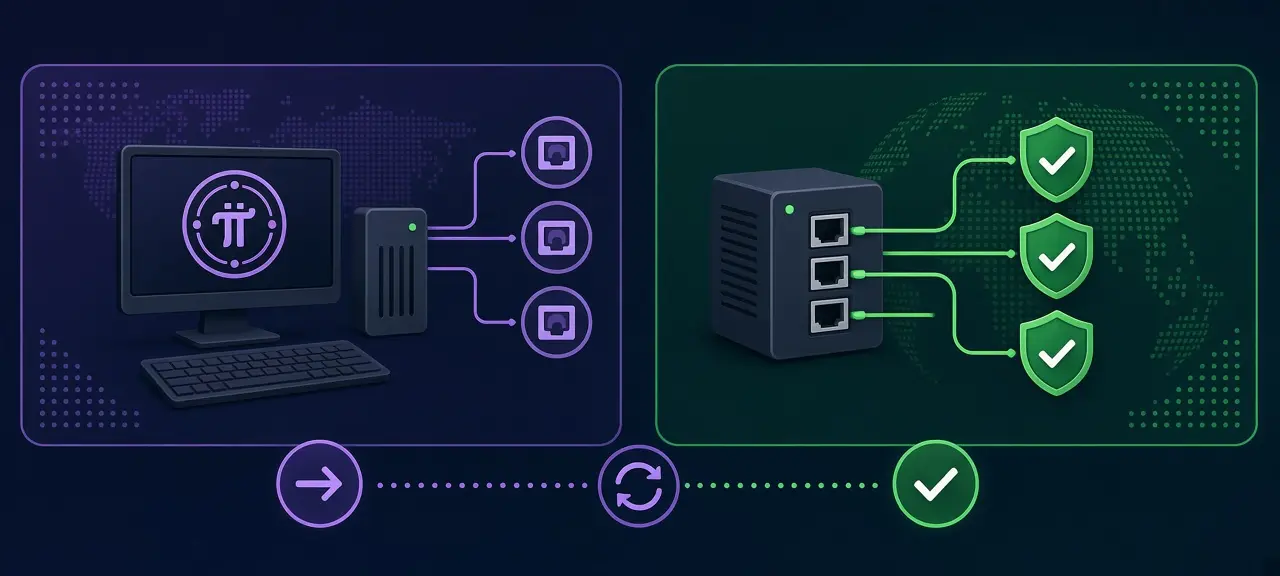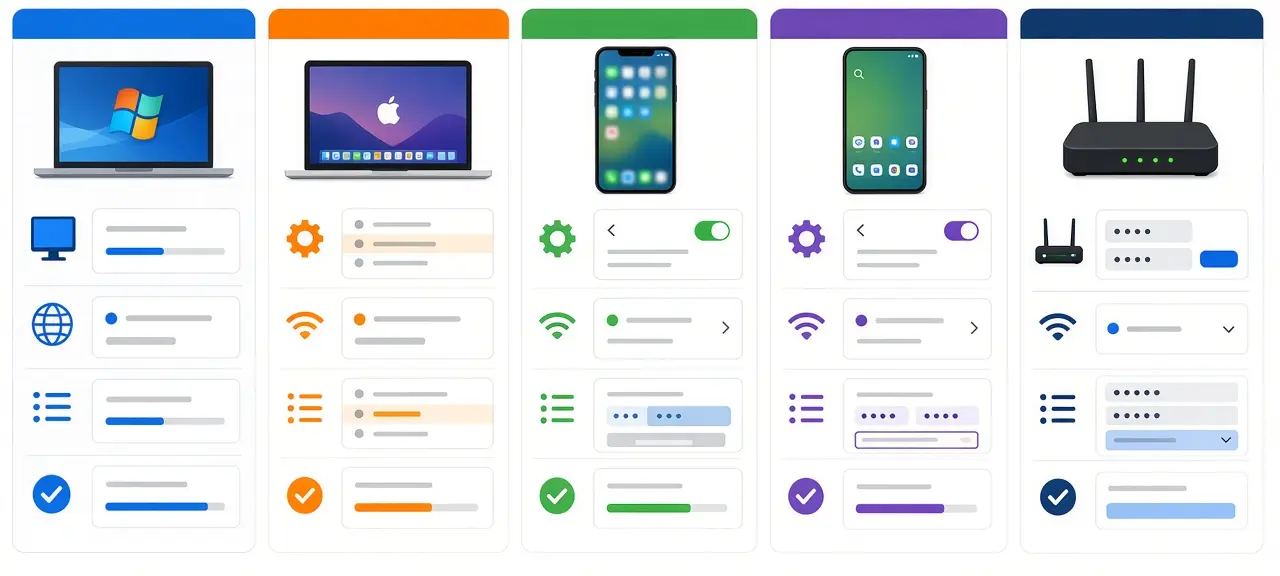

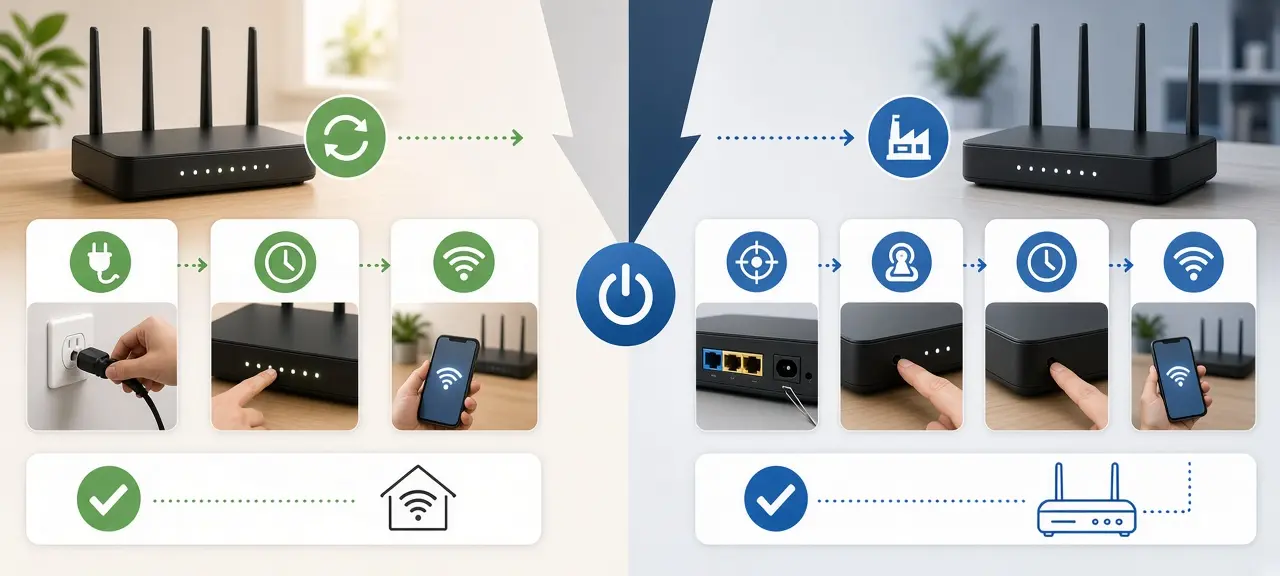
To reset a router to factory settings, leave it powered on, press and hold the recessed Reset button with a paperclip until the lights change, then let it reboot. That's how to reset a router, and it erases every setting you made, including the Wi-Fi name and the admin password. Most people who search for it only need a restart. Unplug the router, wait about 30 seconds and plug it back in. A restart fixes slow or dropped connections and keeps all your settings. If the box came from your internet provider, call them before any factory reset, because the reset also wipes the connection settings their technician entered.
Restart vs factory reset: which one do you need?
A restart (also called a reboot or power cycle) turns the router off and on and keeps every setting. A factory reset, or hard reset, wipes the router back to the state it shipped in. Restart first for speed or connection problems. Save the factory reset for a lost admin password, broken settings or a router you're giving away.
| Restart (reboot) | Factory reset | |
|---|---|---|
| What you do | Unplug it for about 30 seconds, or tap Reboot | Hold the Reset button, or choose Factory Restore |
| Settings | All kept | All erased: Wi-Fi name and password, admin password, port forwarding, internet login |
| Internet downtime | A few minutes | Until you set it up again; on an ISP modem, until the provider does |
| When to use it | Slow internet, dropped Wi-Fi, a device stuck on 169.254.x.x | Lost admin password, settings you can't undo, selling the router |
| Can you undo it? | Nothing to undo | Only with a configuration file backed up beforehand |
TP-Link's reset guide (FAQ 497) also lists parental controls among the things a reset erases. Watch button labels, too. Many apps and ISP web pages call the restart button "reset", so check whether it says it will erase settings before you tap.
How to restart your router the right way
To reset your internet without losing any settings, restart the modem and router in order: unplug both, wait about 30 seconds, plug in the modem first, wait for its lights to settle, then plug in the router. NETGEAR's router reset guide gives this order and says to allow a minute or two for the router to start fully.
A single modem-router box has only one plug to pull. Then run a speed test to see whether the restart helped. Test over a cable if you can, since Wi-Fi results vary by room.
Restart from the admin page or app
Most router admin pages and brand apps have a Reboot or Restart button, usually in the system or administration section. It does the same job as pulling the plug. In Vietnam, the My VNPT and Hi FPT apps and Viettel's viettel.vn/quan-ly-wifi page have a restart button that works even when you're away from home.
Want a new public IP? A 30-second power cycle often brings back the same address. Our guide on how to change your IP address explains how long the modem needs to stay off.
How to factory reset a router with the Reset button
To factory reset a router, keep it powered on, push a paperclip into the small hole labeled Reset, hold it until the lights change, then release and wait for the router to restart. Hold times differ by brand, from 5 seconds to more than 10, so check the table below before you press.
Before you press, do three things:
- Back up the configuration file if the admin page still opens (TP-Link: Backup and Restore; ASUS: Restore/Save/Upload Setting).
- Write down your PPPoE internet login if the router uses one. ASUS advises saving it or asking your ISP first.
- Photograph the label, which holds the Wi-Fi name and password the router returns to.
- Leave the router plugged in and switched on.
- Find the Reset hole, which is separate from the WPS and power buttons. On TP-Link's combined WPS/Reset button, a press under 5 seconds turns on WPS instead.
- Press and hold the button inside with a paperclip or SIM tool.
- Release when the lights change as your brand describes.
- Wait for the reboot. ASUS warns: "Do not power down or shut down the router during the restore."
Router reset button times by brand
These hold times come from each maker's support pages and apply to most of their models.
| Brand | Hold time | Light to watch | Source |
|---|---|---|---|
| TP-Link | More than 10 seconds | SYS light changes from slow to quick flashing | TP-Link FAQ 497, updated April 17, 2026 |
| NETGEAR | 7 seconds; some Nighthawk models need at least 10 | Power light must be on before you start | NETGEAR KB 9665 (July 7, 2025) and router reset guide (January 9, 2026) |
| ASUS | 5 to 10 seconds | Power light starts flashing | ASUS FAQ 1000925, updated February 23, 2026 |
| Other brands and ISP modems | As the manual or provider says | Varies by model | Manual or provider |
Factory reset from the admin page
If the button is hard to reach, reset from the browser. On TP-Link, go to Advanced, System Tools (System on some models), Backup and Restore, and click Factory Restore. On ASUS, open Administration, then the Restore/Save/Upload Setting tab, and click Restore. ASUS also has a "hard reset" that clears its AiProtection and Traffic Analyzer logs too; FAQ 1000925 has the steps.
Resetting a modem from your internet provider
Call your provider before you factory reset a modem they supplied. The reset erases the connection settings their technician entered, such as a PPPoE login or a VLAN ID, and customers rarely have a copy. Without them, the modem can't sign in to the provider's network, and only the provider can put them back.
The symptom is easy to spot: the Wi-Fi returns with the label name and password, your phone connects, and nothing loads. If you have an ISP modem plus your own router, resetting your own router is safer, because it doesn't hold the line settings. You'll still set up its Wi-Fi and mode again.
In Vietnam, VNPT customers can restart in the My VNPT app and should call 18001166 before a reset. FPT customers restart in Hi FPT and call 1900 6600. Viettel customers restart on viettel.vn and call 18008119, as our Viettel router login guide shows. Expats can ask a landlord or a Vietnamese-speaking friend to make the call. If you rent, ask the landlord before you reset anything.
How to reset a router password
How to reset a router password depends on which password you mean. The Wi-Fi password lets devices join the network, and you can see or change it without a reset. The admin password opens the settings page. If that one is lost and the label login fails, a factory reset is the last fix.
- Wi-Fi password: read it on a device that's already connected, or set a new one in the admin page or app. Here's how to change your Wi-Fi password on common brands and ISP apps.
- Admin password: try the login on the label, then ask whoever set the router up. NETGEAR routers offer password recovery on the login page (serial number plus security questions) if it was set up earlier. A factory reset comes last.
After a reset, the admin login goes back to the label. Newer TP-Link and ASUS routers ask you to create a new admin password at first sign-in.
What to do after you reset your router
To connect to Wi-Fi after resetting a router, join the network name printed on its label with the password next to it. If a phone says the password is wrong, it's still holding the old one: tap Forget network and join again. Then sign in to the admin page and rebuild your settings.
- Log in to your router with the label details.
- Set a new admin password, different from the Wi-Fi password.
- Set the Wi-Fi name and password with WPA2 or WPA3. Reusing the old ones lets devices reconnect by themselves.
- Enter your internet login again, or wait for your provider.
- Update the firmware, as NETGEAR's guide advises after a reset.
- Load your backup file, or redo port forwarding and parental controls by hand.
- Reactivate paid services. NETGEAR KB 9665 says Armor and Smart Parental Controls must be turned on again manually.
Open the CheckIP homepage when you're done. If it shows a public IP, the router is online again.
Reset didn't help? Common router reset problems
When a reset doesn't fix the connection, the cause usually sits outside the router's settings: a failing power adapter, the provider's line, or a reset that never finished. Match what you see to the table below. Hardware faults need the maker or the provider.
| Problem | Likely cause | Fix |
|---|---|---|
| Lights never come back, or the router restarts in a loop | Power adapter, socket or firmware fault | Try an adapter with the same rated output, then contact the maker or provider |
| Wi-Fi works, no internet | Provider's connection settings erased | Call your provider |
| Old Wi-Fi name still shows | Button released early, or WPS pressed instead | Repeat with the hold time from the brand table |
| Admin page won't open | Device still on the old network or address | Reconnect to the label Wi-Fi and check the default gateway |
| Red LOS light on a fiber modem | Fault on the provider's fiber line | Call the provider; a reset can't fix the line |
Frequently asked questions
Is it OK to restart my router every day?
Yes. A restart keeps your settings, and the only cost is a few minutes offline. Some apps can schedule it; My VNPT, for example, has a scheduled modem restart. If the connection only works after a daily restart, look for the real cause, such as overheating or old firmware.
Does resetting a router change my IP address?
Not reliably. Your public IP comes from your ISP, and a factory reset doesn't request a different one. A modem left off long enough may get a new dynamic address, while a static IP never changes this way. Check your address on CheckIP before and after.
How long does a router reset take?
Holding the button takes 5 to more than 10 seconds, depending on the brand. The router then needs a few minutes to boot. Setting it up again takes longer, since you rename the Wi-Fi, set passwords and reconnect every device.
Will resetting my router make the internet faster?
Only when a setting was the problem, such as a broken rule or a bad channel choice. If your plan, the provider's line or Wi-Fi range is the limit, a reset changes nothing. Measure over a cable before and after to see which case you're in.
Can I reset my router remotely?
You can restart it remotely through the brand's app or your provider's app or web page. A remote factory reset is only possible through the admin page or a brand app, and it can cut the connection you're using. On an ISP modem, don't try it without the provider.