
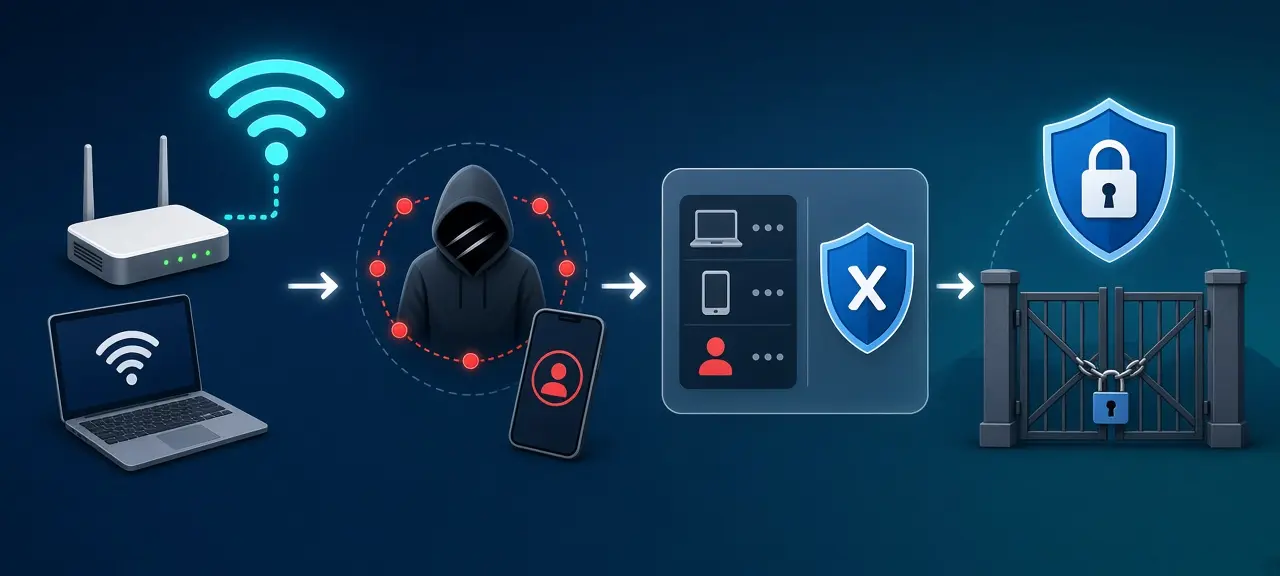
To block someone from your Wi-Fi, open your router's list of connected devices in the router app or on its router admin page, pick the device you don't recognize and choose Block, or add its MAC address to a block list. That stops one device. Anyone who knows the password can come back on another phone, or on the same phone with a new MAC address, so change the password too if you don't trust the person. Everything here applies to a network you own or manage. In a rental, dorm or office, ask the landlord or the IT team.
First, find the device you want to block
Before you block anything, write down the name and MAC address of the device you don't recognize. Then turn off Wi-Fi on your own phones, laptops and TV one at a time and watch which entries disappear from the list. Whatever is left and still unknown is the one to block. Smart plugs and cameras often show odd names, so rule them out first. Our guide to see who is on your Wi-Fi explains the device list in detail.
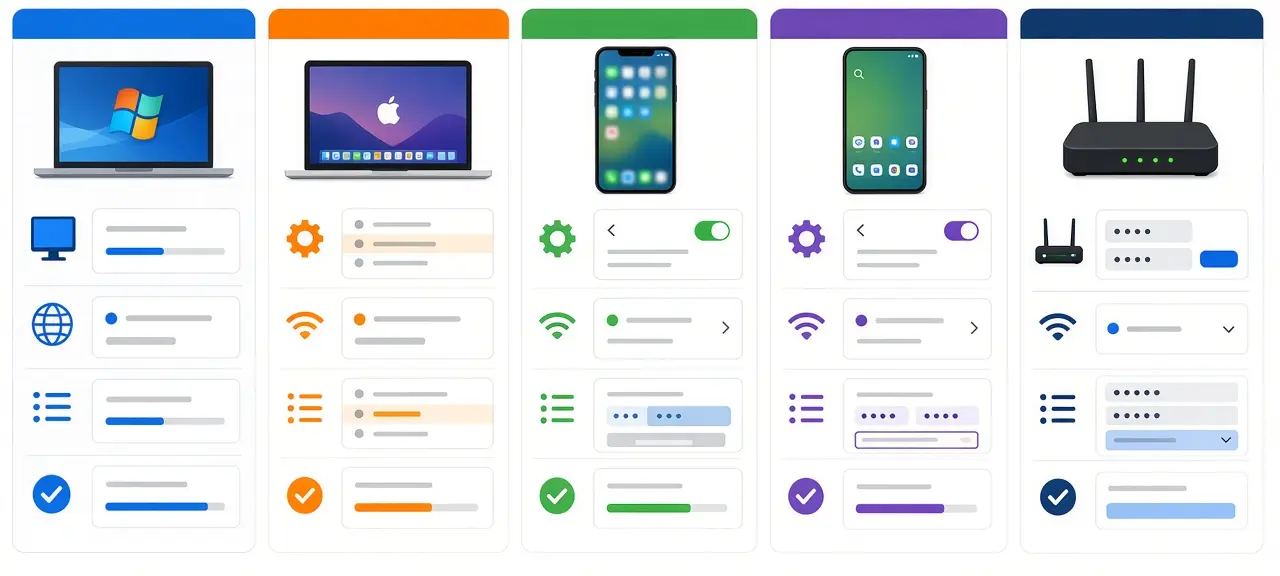
How to block someone from Wi-Fi in your router app or admin page
The quickest way to block a device from Wi-Fi is the Block option in your router's app or admin page. It cuts off that one device, while every other phone and laptop stays connected and nobody has to type a new password. The option sits under names like Block List, Blocked Clients, Access Control or Manage Device.
Block a device in the TP-Link Tether app
TP-Link has two paths in Tether, depending on the router's age, according to its support page FAQ 2584 (updated April 17, 2026):
- Wi-Fi 6, 6E and 7 routers (Archer AX72, BE800 and similar): tap Local Device, then More, then Block List, then the + icon. Choose Select Clients to pick a connected device, or Add by MAC Address to type one in.
- Older routers (Archer A8, C54 and similar): tap Clients and swipe left on the device. It moves to the Blocked Clients list.
One quirk: on some older TP-Link models, a blocked device can still join the Wi-Fi but gets no internet. If the device still shows as connected after you block it, that's why.
Block a device on the router's admin page
Sign in at the address printed on the router label, using the admin login printed on the same label. The device list is usually under Connected Devices, Device List, DHCP Clients or Attached Devices. The block button is either next to each device or on a separate Access Control or MAC Filter page. Huawei routers list connected devices on a page called Manage Device and offer a Blocklist mode for the Wi-Fi, according to Huawei's support page.
On a mesh system, block the device once in the mesh app and every unit applies it. A second router in router mode keeps its own device list, so block the device on the router it's connected to.
Block Wi-Fi users on Viettel, VNPT and FPT modems in Vietnam
In Vietnam, Viettel, VNPT and FPT let you manage the home modem through an app or website signed in with the phone number on the internet contract. VNPT's My VNPT app has a block option for each connected device. For FPT and Viettel, the dependable routes are the modem's admin page at the address on its label, usually 192.168.1.1, or a password change.
VNPT: in My VNPT, open Viễn thông, then Internet under Dịch vụ của tôi, then Modem Wifi. Under Tiện ích, open Danh sách kết nối (connection list), tap the "..." next to a device and choose to block or unblock its Wi-Fi access. That path comes from VNPT's customer care site 18001166.vn, in a guide from October 2024, and the app layout may have changed since. The full app path to your modem is in our VNPT router login guide.
FPT: the Hi FPT app manages the modem and Wi-Fi remotely and can schedule internet use, according to FPT Telecom's Google Play listing. FPT doesn't publish a step-by-step block guide. If your version of the app has no block option next to a device, block it on the modem's admin page, covered in our FPT router login guide, or change the password. Support: 1900 6600.
Viettel: the My Viettel app closed on October 1, 2026, and its services moved to the Viettel Tammi app. Viettel's Wi-Fi page at viettel.vn/quan-ly-wifi lets you change the password of each network, turn networks on or off and restart the modem. Viettel hasn't documented a per-device block there, so to block a single device, use MAC filtering on the modem's admin page if your modem has it. How to reach that page is in our Viettel router login guide. Support: 18008119.
Renting? The provider apps only work for the account holder, so ask your landlord to block the device or change the password.
What is MAC filtering and how do you use it?
MAC filtering is a router setting that checks the MAC address of every device trying to join your Wi-Fi against a list you keep. A MAC address is a hardware ID made of 12 hexadecimal characters, written as six pairs such as 00:1A:2B:3C:4D:5E. Routers offer MAC filtering in two modes, and you pick one:
- Block list (also called Deny or blacklist; Huawei calls it Blocklist): devices on the list are kept off, everyone else gets in. Quick, but a new MAC address gets back in.
- Allow list (also called Allow or whitelist; Huawei calls it Trustlist): only devices on the list can join. Tighter, but every new phone and guest has to be added by hand.
Block by MAC address, not by IP address. The router hands out local IP addresses from a pool, and a device can get a different one the next time it connects.
The catch: phones now use random MAC addresses
iPhones and Android phones show each Wi-Fi network a private, randomized MAC address instead of their hardware one. That weakens both MAC filtering modes.
On iPhone, the setting is under Settings, Wi-Fi, the (i) button next to the network, then Private Wi-Fi Address, with three choices: Off, Fixed and Rotating (iOS 18 and later). Fixed is the default for networks using WPA2 or stronger, and Rotating changes the address every 2 weeks. Forgetting a network and joining again, or resetting network settings, gives the phone a new address, according to Apple Support (December 2025). On Android 10 and later, each saved network gets its own random MAC address by default, and it stays the same until a factory reset, according to the Android Open Source Project.
Two things follow. A block list only holds off someone who doesn't bother to rejoin, so pair it with a new password. An allow list can lock out your own iPhone if it switches to a new private address. Set Private Wi-Fi Address to Fixed for your home network and add that address to the list.
Change your Wi-Fi password to kick everyone off at once
Changing the Wi-Fi password is the one move that kicks someone off your Wi-Fi for good, along with every other device that only knows the old password. Each device has to type the new one before it can reconnect, so a neighbor or former tenant is out until someone gives them the new password. The steps are in our guide to change your Wi-Fi password. On a VNPT line, here is how to change your VNPT Wi-Fi password. A Wi-Fi QR code made with the old password stops working too. Afterward, unblock devices you no longer need to block.
| Method | Who loses access | Can they come back? |
|---|---|---|
| Block in router or provider app | One device | Yes, on another device or with a new MAC address |
| MAC filtering, block list | Listed devices | Yes, with a new MAC address |
| MAC filtering, allow list | Every device not on the list | Only if you add them |
| Change the Wi-Fi password | Every device until it types the new password | Only if someone shares the new password |
| Guest network | Only guests, when you change the guest password | Only with the new guest password |
Close the gaps so they can't get back in
To keep a blocked person out, turn off WPS, set the security mode to WPA3 or WPA2, change the router's admin password and check the device list again a few days later. A new Wi-Fi password alone leaves these doors open.
WPS (Wi-Fi Protected Setup) is the button or PIN that connects devices without the password. A design flaw in the WPS PIN cuts the number of guesses needed to about 11,000, according to CERT/CC advisory VU#723755, and CERT/CC's advice is to disable it. The setting may be labeled WPS, Wi-Fi Protected Setup or router PIN.
Next to the Wi-Fi password box, pick WPA3-Personal, or WPA2/WPA3 if your router lists it. WPA2 with AES is the minimum; skip WEP and the original WPA. The Wi-Fi Alliance says WPA3-Personal users "receive increased protections from password guessing attempts." Some routers label the Wi-Fi password as the WPA2 password or network key.
If the router admin password is still the one printed on the label, change it, since anyone who has held the router can read it. Turn off remote management too, unless you use it. Hiding the network name doesn't help much: anyone who already knows the name can still type it in. If nobody knows the admin password anymore, you'll need to reset your router to factory settings.
Set up a guest Wi-Fi network for visitors
A guest Wi-Fi network has its own name and password and keeps visitors apart from the computers, phones and printers on your main network. When a guest, tenant or cleaner leaves, you change only the guest password, and nothing in the house has to reconnect. Look for an option called Guest Network or Guest Wi-Fi in the Wi-Fi settings; not every ISP modem has one.
Smart plugs and cameras controlled through the maker's cloud app can live on the guest network too.
What not to do when someone is on your Wi-Fi
Don't use apps that claim to "cut" or "kick" other people off a network from your laptop, deauthentication tools or signal jammers. They disrupt people who have nothing to do with you, they can break the law, and many of these apps come from unknown sources.
If the network isn't yours, as in an apartment building, cafe or office, report the problem to whoever runs it instead of trying to block devices yourself.
Frequently asked questions
Can I block someone from my Wi-Fi without changing the password?
Yes. Use the Block option in your router or provider app, or add the device's MAC address to a block list. The person can return on another device, or on the same phone after it picks up a new private MAC address. If they know the password and keep coming back, a new password is the only lasting fix.
Will the person know they've been blocked?
Routers don't send any notice. The blocked phone simply fails to connect, keeps asking for the password, or shows Wi-Fi with no internet, depending on how your router blocks devices. Nothing on their screen names you or uses the word blocked.
Why can a blocked device still connect?
Three usual reasons. The phone joined with a new random MAC address, so the router sees a new device. You blocked it on one router while it's connected to a second router in router mode. Or your router is an older model that blocks internet access but still lets the device join the Wi-Fi.
How do I unblock a device on my Wi-Fi?
Go back to the same place you blocked it. In TP-Link Tether, open Block List and choose Unblock, or swipe left in Blocked Clients on older routers. On an admin page, delete the device's line from the MAC filter list and save. In My VNPT, tap "..." next to the device and choose to unblock it.
Can I block someone from my Wi-Fi using my phone?
Yes. Use your router maker's app, your provider's app such as My VNPT, or open the router address in your phone's browser while connected to your Wi-Fi. The browser method works with any router, and turning the phone sideways makes the admin page easier to tap.
Can I limit someone's time on Wi-Fi instead of blocking them?
Some routers have a schedule or parental controls setting that turns internet access off for chosen devices at set times. My VNPT can schedule the whole Wi-Fi network on and off, and Hi FPT can schedule internet use, according to each provider. Those schedules cut off everyone, not one device.