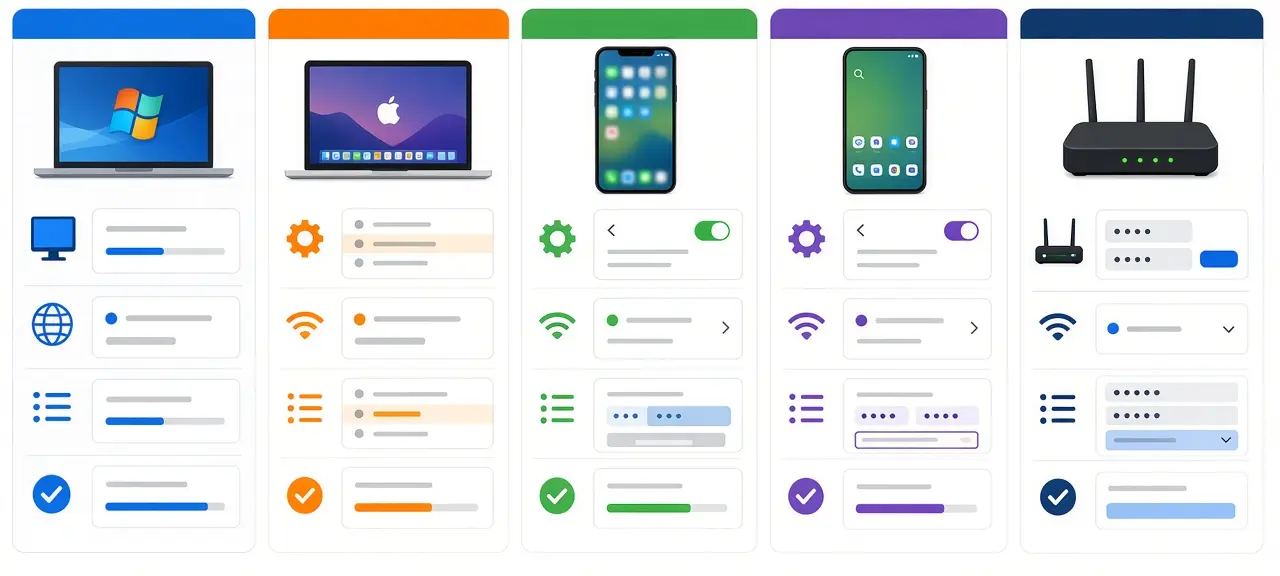

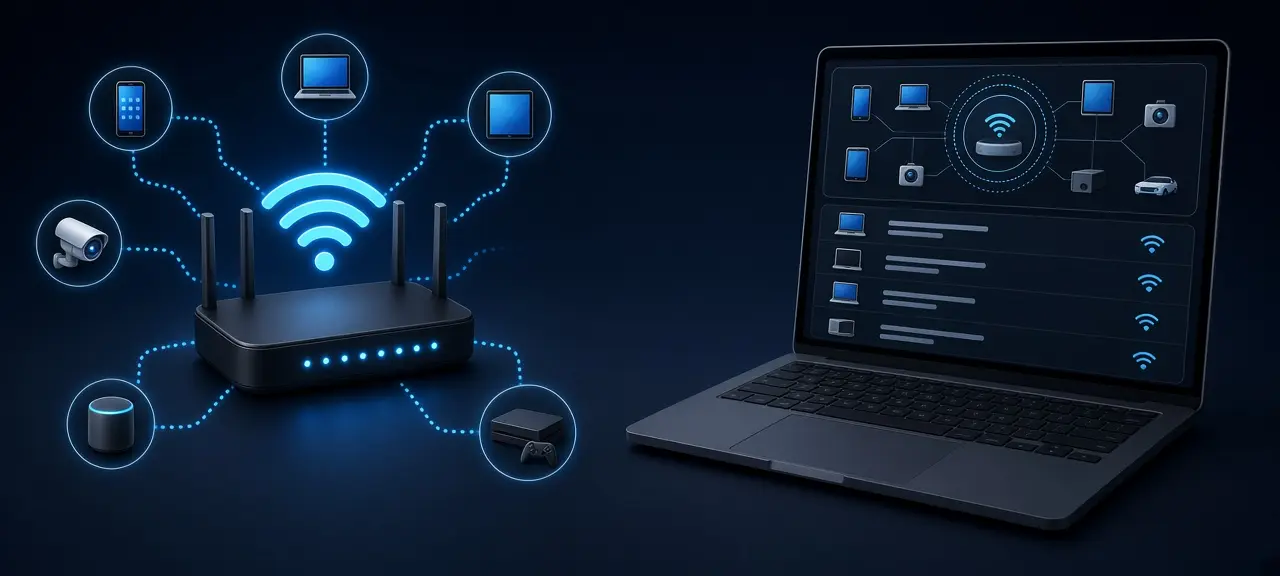
To answer "who is on my Wi-Fi", open your router's admin page (usually 192.168.0.1 or 192.168.1.1) or its phone app and find the list called Connected Devices, Clients, Attached Devices or DHCP Clients. Every entry there is a device on your network, with a name, IP address and MAC address. Match each entry to a phone, laptop, TV or smart plug you own. Whatever is left deserves a closer look. If you have never opened the router page, our guide to log in to your router has the address and login steps for each brand.
Who is on my Wi-Fi network? Check the router's admin page
The router's admin page is the most complete place to see devices connected to Wi-Fi, because the router hands out every local address on the network. You need a device on the network, the router address and the admin login printed on the router label. It takes about two minutes.
- Connect to your Wi-Fi, or plug a laptop into the router with a cable.
- Type the router address (the "default gateway" in your network details) into the address bar.
- Sign in with the admin username and password on the router label.
- Open the device list, usually under Status, Network, LAN or Wireless.
The list goes by Connected Devices, Client List, Attached Devices, Wireless Clients, DHCP Client List or Device Table, depending on the firmware. Two of these work differently. A DHCP client list shows every device the router gave a private IP address to, and an entry can stay until its lease runs out, even after the device has left. A wireless client list shows only devices on Wi-Fi right now.
Most lists show the device name, private IP address (such as 192.168.1.23), MAC address, connection type (2.4 GHz, 5 GHz or wired) and lease time.
How to see who is using my Wi-Fi from your phone
To see who is using your Wi-Fi from a phone, open your router maker's app or your internet provider's app and find its client or device list. They need the account that set up the router or the one on the internet contract.
TP-Link Tether and mesh apps
TP-Link's support page (FAQ 2584, updated April 17, 2026) gives two paths in the Tether app. On older routers such as the Archer A8 or C54, tap Clients. On Wi-Fi 6, 6E and 7 routers, tap Local Device, More, Block List, then the + icon; Select Clients shows the connected devices.
A mesh system has one app, and its list covers every satellite. A router you added behind your provider's modem may show as one entry on the modem; devices behind it appear only in that router's app.
VNPT, FPT and Viettel in Vietnam
Expats on a Vietnamese fiber line can check from the provider's app, which is in Vietnamese:
- VNPT: in My VNPT, open Viễn thông, Internet, Modem Wifi, Tiện ích, then Danh sách kết nối (connection list). VNPT's Ho Chi Minh City support center documents this path; the list shows each device and its connection status.
- FPT: FPT Telecom lists checking the devices using your Wi-Fi as a Hi FPT feature. Look in the app's modem section.
- Viettel: My Viettel closed on October 1, 2026, and moved to Viettel Tammi. The Wi-Fi page at viettel.vn/quan-ly-wifi restarts the modem and changes passwords, but we haven't confirmed a device list there or in Tammi. Use the admin page at 192.168.1.1, with the steps in our Viettel router login guide.
Provider apps open only for the contract holder's account. Renters should ask the landlord.
Network scanner apps: what they show and what they miss
A network scanner app lists the devices on the same Wi-Fi as your phone or laptop, with no router login. Fing is one example on iPhone and Android. It records each device that answers, with its IP, MAC address and a guessed maker.
- A device that is asleep or switched off doesn't answer, so it doesn't appear.
- The maker is guessed from the MAC address. A private MAC address has no registered maker, so it shows as unknown.
- The app can't show who uses the most bandwidth, and it can't remove anyone without router access.
An online network scanner in a web page can't list the IP addresses on your network. Web pages can't scan the devices inside your home, and CheckIP runs in the browser too. Our tools work from the internet side, like the public IP on the home page. For devices inside your home, use the router or an installed app. Scan only networks you own or manage.
How to identify an unknown device on your Wi-Fi
To identify an unknown device on your Wi-Fi, list every device in your home, match each one's IP and MAC address to the router list, and switch devices off one at a time until only the unexplained entries remain. Smart home devices are the ones people forget.
- List everything on Wi-Fi: phones, laptops, TVs, cameras, speakers, smart plugs, robot vacuums, printers, washing machines.
- On each device, open the Wi-Fi details and note its IP and Wi-Fi MAC address. This is how to identify an IP address on your network: the same number shows on the device and in the router list.
- Turn Wi-Fi off on one device, refresh the list, and see which entry disappears.
- Rename confirmed devices in the router, if it allows, so the next check is faster.
Why your own phone looks like a stranger (private MAC addresses)
Modern phones join each network with a made-up MAC address, so the router can't match them to a maker and often lists them as unknown. It is the most common reason owners think a stranger is on the network.
On iPhone, Private Wi-Fi Address is on by default and differs for each network. According to Apple Support (article 102509), iOS 18 and later offer Off, Fixed and Rotating. Fixed is the default on WPA2 or stronger networks, and Rotating changes the address every 2 weeks. Find it in Settings, Wi-Fi, the (i) next to the network.
Android 10 and later use a randomized MAC address by default, according to the Android Open Source Project. It stays the same for each saved network until a factory reset, and you can switch it off per network in the network details screen. The menu name varies by phone brand.
A quick test: look at the second character of the MAC address. If it is 2, 6, A or E, the address is "locally administered", meaning the device made it up instead of using the maker's address. Android sets exactly this bit for randomized addresses. An entry starting 6A or DE is very often a phone, not an intruder. A phone can also show twice after you forget and rejoin a network.
Clues in the device name
The device name is a hint, not proof. Phones and laptops often send the owner's name for the device or a model name. Smart plugs and cameras often send a short code or nothing, so a blank name is normal for them. Trust a name only after the switch-off test.
Signs someone is using your Wi-Fi without permission
The clearest sign is a device on the router list that survives the switch-off test. Slow speeds or a blinking light have ordinary causes too, so each clue needs a second check. Check each one before you decide a neighbor is on your Wi-Fi.
| Clue | Could also be | How to check |
|---|---|---|
| More entries than devices in your home | Old DHCP leases, a phone with two private addresses | Use the wireless list; do the switch-off test |
| An unknown device appears every evening | A family member's work laptop or a guest | Ask the household; note the MAC and time |
| Slow internet when nobody is using it | Background updates, the line, router placement | Speed test over a cable and over Wi-Fi |
| Wi-Fi light blinks with every device off | Routers broadcast beacons even when idle | Weak evidence; check the device list |
| The router or app reports a new device | A phone joining with a new private address | Check the MAC's second character |
For slow internet, run a speed test once on a cable and once on Wi-Fi. Slow on both points to the line or provider. Slow only on Wi-Fi points to router position, interference or too many devices.
Found a device you don't recognize? What to do next
When an unknown device survives the switch-off test, ask everyone in the home first, then change your Wi-Fi password. A new password disconnects every device, and only people you give it to can rejoin. Then replace the admin password from the label. If someone changed it and you're locked out, reset your router to restore the label login. If the device stayed for weeks, learn what an intruder on your network can do with that access.
Change your Wi-Fi password, reconnect your own devices, and set security to WPA2 or WPA3 if the router still allows an older mode. On a VNPT line, you can change your VNPT Wi-Fi password in the My VNPT app.
Router pages and apps such as My VNPT and TP-Link Tether can also block a single device. The steps, MAC filtering and its limits are in our guide to block a device from your Wi-Fi, along with guest networks for visitors. Do this only on a network you own or manage.
Frequently asked questions
Can I see who is on my Wi-Fi without logging in to the router?
Yes, in two ways. Your router maker's app or your provider's app shows the device list with your account instead of the admin page. A network scanner app on a device on the Wi-Fi lists the devices that answer it.
Can I see what websites someone visits on my Wi-Fi?
Not from a typical home router's device list. It shows devices and sometimes how much data each one uses. Most websites use HTTPS, which encrypts page content between the browser and the site, so the router can't read it.
Why does my router show devices with no name?
The device didn't send a hostname. Smart plugs, cameras and other smart home devices often skip it, and phones with a private Wi-Fi address may show no maker. Match the IP and MAC address shown on the device itself to name the entry.
Can my neighbor see that I'm on their Wi-Fi list?
Only people who can open that router's admin page or app can see its device list. While you're connected, your device's name and MAC address appear there. With a private Wi-Fi address, that MAC isn't your phone's hardware address, but the device name may still show.
Does a device on the list mean it's online now?
Not always. A DHCP client list can keep a device until its lease expires, which can be hours or days after it left. Check the wireless client list, a status column or the connection time.