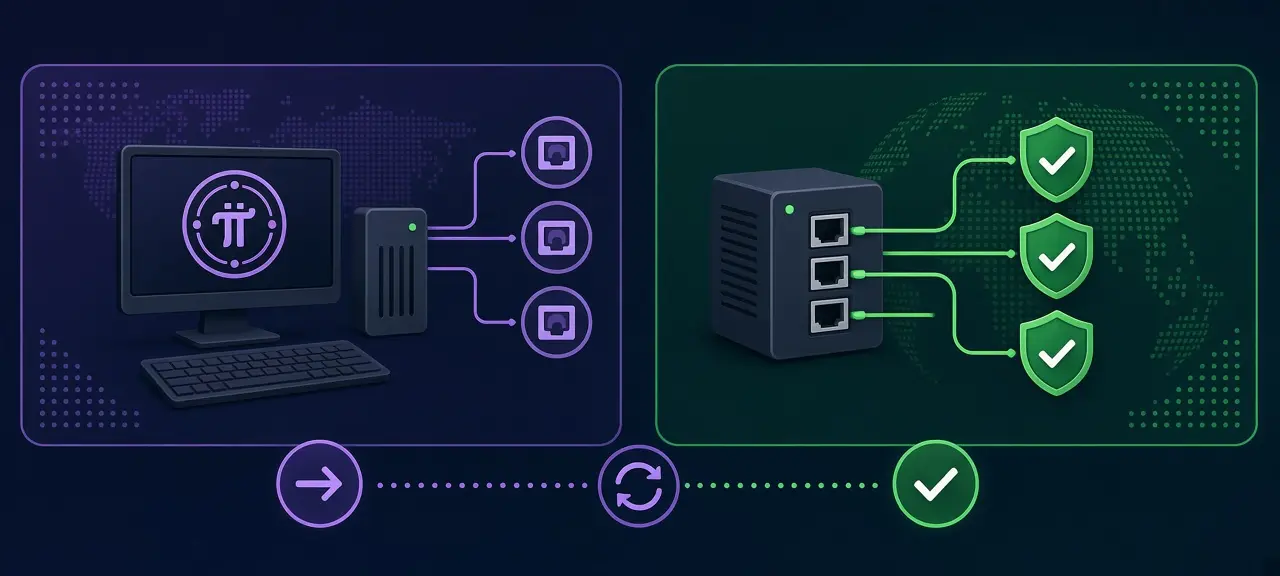

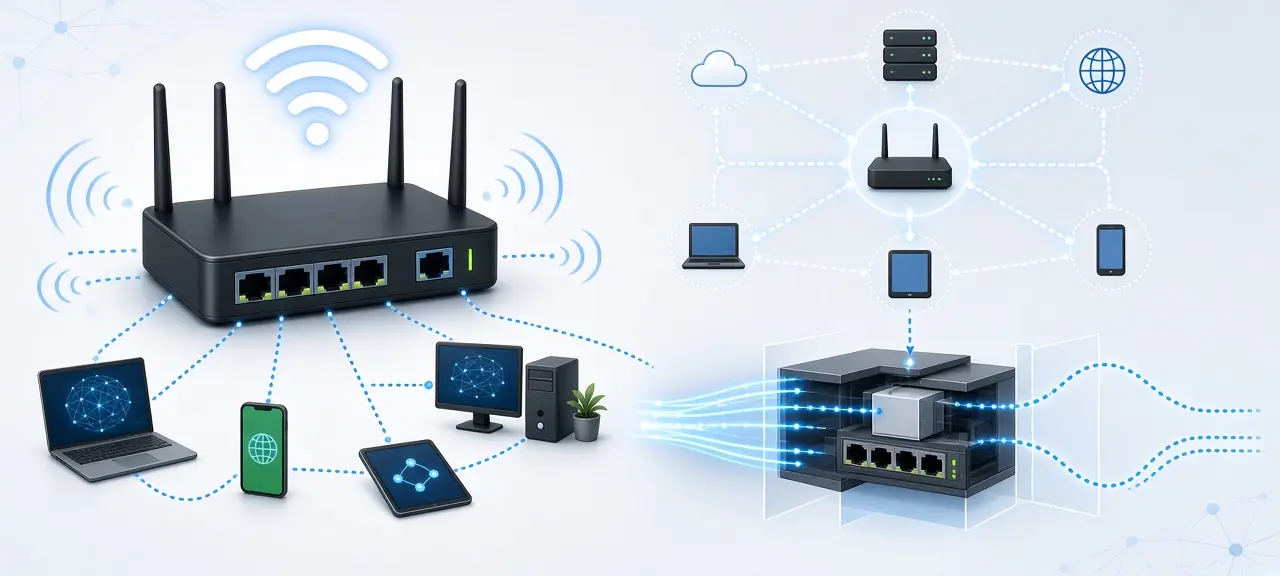
A router is a device that joins your phones, computers and smart devices into one local network and forwards traffic between that network and the internet, so a single connection can serve every device in the house. That is the short answer to what is a router: the networking device, not the woodworking tool. At home it also gives each device a local IP address, lets all of them share one public IP, and usually broadcasts the Wi-Fi. The modem is a different box. It brings the internet into the house, and the router shares it. Many internet providers now put both in one device, which is why the two names get mixed up.
What is a router used for at home?
A home router does five jobs: it forwards data between your network and the internet, hands out local IP addresses, shares one public IP with every device, runs the Wi-Fi, and blocks connections nobody asked for. That is what a router does, and almost every home setting comes back to one of these five.
- Routing. The router reads where each packet is going and sends it either to another device in your home or out to your internet provider (ISP). The baseline rules for IPv4 routers are written in RFC 1812.
- Handing out addresses. A built-in DHCP server, the protocol defined in RFC 2131, gives each phone or laptop a local address such as 192.168.1.23 the moment it joins.
- Sharing one public IP. Your ISP gives the router one public address, and network address translation (NAT) lets every device go online through it. Here is how NAT and private IPs work in more detail.
- Running the Wi-Fi. Most home routers have a wireless access point built in. The network name it broadcasts is the SSID.
- Basic protection. Because of NAT and the built-in firewall, outside devices can't open a connection to your laptop unless you allow it.
The public IP your router shares is the one CheckIP's homepage shows when you open it from any device in the house. A phone, a TV and a laptop on the same Wi-Fi all show the same number.
How does a router work?
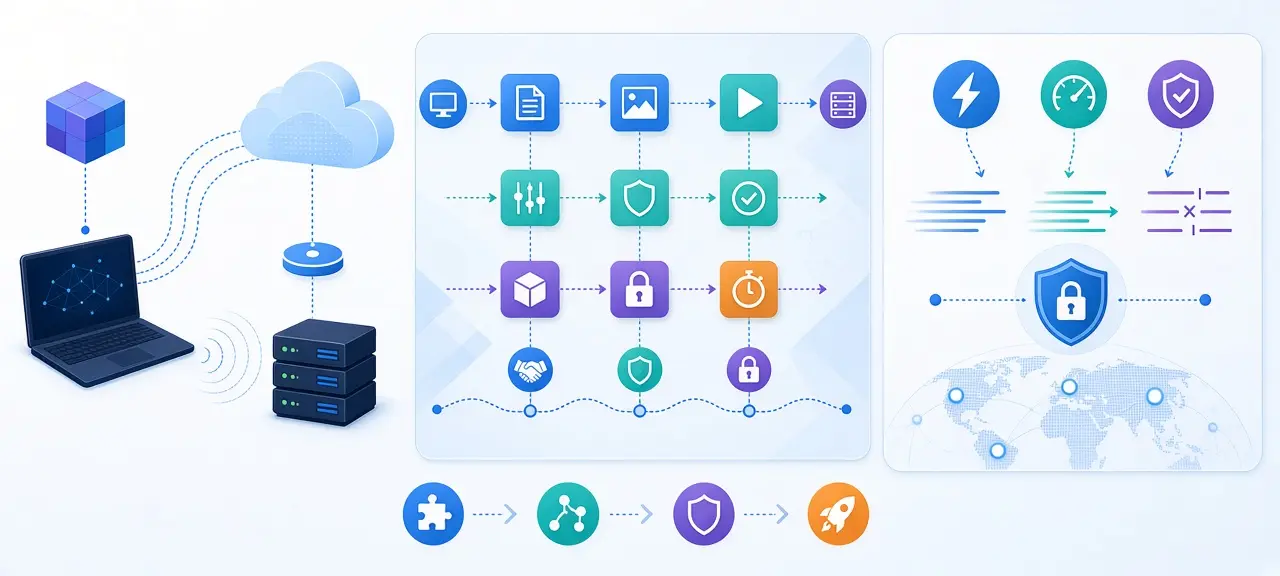
A router works by reading the destination IP address on every packet, looking it up in its routing table, and sending the packet out of the port that leads closer to that address. At home it also rewrites the sender's address on the way out and remembers each conversation, so replies reach the right device.
Here is the trip one request takes when your laptop opens a website:
- The laptop sees that the website is not on the home network, so it sends the packet to its default gateway, which is the router.
- The router reads the destination address and checks its routing table. The only matching route is "send it to the ISP", so the packet goes out the WAN port.
- On the way out, NAT swaps the laptop's private address (say 192.168.1.23) for the router's public one and writes the pair into a translation table.
- The modem turns the packet into a signal for the cable, phone line or fiber, and the ISP carries it to the web server.
- The reply comes back to the public IP. The router finds the matching entry in its NAT table and hands the data to 192.168.1.23, not to the phone or TV.
Routing tables and the next hop
No IP router knows the full path to a website. It only knows the next hop: the next router to hand the packet to. A home router's table is short, with one entry for the local network and a default route pointing everything else at the ISP. Routers inside ISP and backbone networks hold far larger tables and learn them from routing protocols such as BGP and OSPF.
Router vs switch
A switch connects devices inside the same network and forwards frames by MAC address. A router connects different networks and forwards packets by IP address. The two often live in one box: the three or four LAN ports on the back of a home router are a small switch.
Router vs modem: what's the difference?
The modem vs router difference is about which side of your home each one faces. A modem connects your home to the ISP's line and turns its signal into data. A router connects your devices to each other and to that modem. You need both jobs done to get Wi-Fi on several devices.
| Feature | Modem | Router |
|---|---|---|
| Main job | Connects your home to the ISP | Connects your devices to each other and to the modem |
| Signal it handles | Cable, DSL, fiber or cellular, converted to Ethernet | Ethernet and Wi-Fi only |
| IP address it holds | The public IP from the ISP (or a shared CGNAT address) | Hands out private IPs to your devices |
| Wi-Fi | No, unless it's a combo unit | Usually yes |
| Ports | Coax, phone or fiber, plus one Ethernet port | One WAN port and several LAN ports |
| On its own | Gets one wired device online | Runs a local network with no internet |
What is a modem?
A modem (short for modulator-demodulator) converts the signal on your ISP's line into data a computer or router can use, and back again. The type depends on the line: cable modems follow the DOCSIS standard, DSL modems use the phone line, a fiber connection ends in an optical network terminal (ONT), and 4G or 5G home internet uses a cellular modem. Its only use is to get one connection into the house. A modem doesn't share that connection or run Wi-Fi.
Modem-router combos and ISP gateways
Most ISPs now supply a single box that combines a modem, a router and a Wi-Fi access point, often called a gateway. So if you're asking what a router and modem combo is, it's this box. Router vs gateway is mostly a naming question: a gateway is a router with a modem inside. It saves space but usually offers fewer settings than a standalone router. In Vietnam, fiber ISPs such as Viettel, VNPT and FPT install an optical modem with the router and Wi-Fi built in.
How to tell which one you have
Look at the ports. A coax, phone or fiber port means the box has a modem inside. Several LAN ports plus antennas or a Wi-Fi name on the label mean it has a router. Many boxes have both. To check from the inside, log in to your router, find the WAN IP on its status page and compare it with the public IP on CheckIP's homepage. If the WAN IP is private (192.168.x.x or 10.x.x.x), another router sits in front of yours. A WAN IP between 100.64 and 100.127 usually means your ISP uses carrier-grade NAT.
Do you need both a modem and a router? You need both jobs done, and one gateway box can do them.
Router vs access point, extender and mesh Wi-Fi
Only the router creates the network and hands out addresses. An access point, an extender and the satellite units of a mesh system add Wi-Fi coverage to a network the router already runs. Which one fits depends on whether you can run a cable to the far room.
| Device | What it does | Assigns IPs? | When to use it |
|---|---|---|---|
| Router | Creates the network, routes traffic, shares the internet | Yes | Every home needs one (or a gateway) |
| Access point | Adds Wi-Fi over an Ethernet cable, no routing | No | A cable already reaches the weak room |
| Extender (repeater) | Picks up the Wi-Fi and rebroadcasts it, often at lower speed | No | One dead spot, no cable |
| Mesh system | Main unit routes; satellite units share one Wi-Fi name | Main unit only | Multi-floor or long homes |
Does a router extend Wi-Fi range? Not another router's range. A second router plugged in normally builds a second network with its own name and addresses. To cover a house with several floors, use a mesh system or wired access points. In both setups the main router or gateway stays the default gateway for every device, because the extra units only pass Wi-Fi traffic along.
Types of routers
Home routers are grouped by Wi-Fi generation and by how many radio bands they use. Beyond the home, there are mesh systems, cellular routers, and the business and ISP routers that carry traffic between networks.
- Home wireless routers. The Wi-Fi Alliance named the generations in 2018: Wi-Fi 5 for 802.11ac and Wi-Fi 6 for 802.11ax. Wi-Fi 6E is Wi-Fi 6 in the 6 GHz band, and Wi-Fi 7 is based on 802.11be. A dual-band router uses 2.4 GHz and 5 GHz; a tri-band model adds a second 5 GHz radio or a 6 GHz radio.
- Mesh Wi-Fi systems. Two or more units sold as a set, with one acting as the router.
- Cellular routers. They take a SIM card and share a 4G or 5G connection, either as fixed home internet or as a small travel router.
- Business and ISP routers. Edge routers sit where a company or ISP network meets the outside world, and core routers carry traffic inside a large network. A virtual router is routing software running on a server or in the cloud instead of on dedicated hardware.
Using your own router with an ISP gateway
You can add your own router behind an ISP gateway in three ways: put the gateway in bridge mode, set your router to access point mode, or run one router behind the other. Each gives a different result for addresses and port forwarding.
- Bridge mode on the gateway. A bridge mode router setup turns off the routing part of the ISP box, so it works only as a modem and your own router gets the public IP. Some ISPs lock this option or turn it on only when you call them.
- Access point mode on your router. Your router stops routing and only adds Wi-Fi. Devices still get addresses from the ISP gateway, so there is one network and one layer of NAT.
- Router behind router. The easiest setup: plug your router's WAN port into a LAN port on the gateway. It works for browsing, but it creates double NAT, which can break port forwarding for game servers and cameras. The double NAT section of our router login guide shows how to spot it.
Router settings worth checking
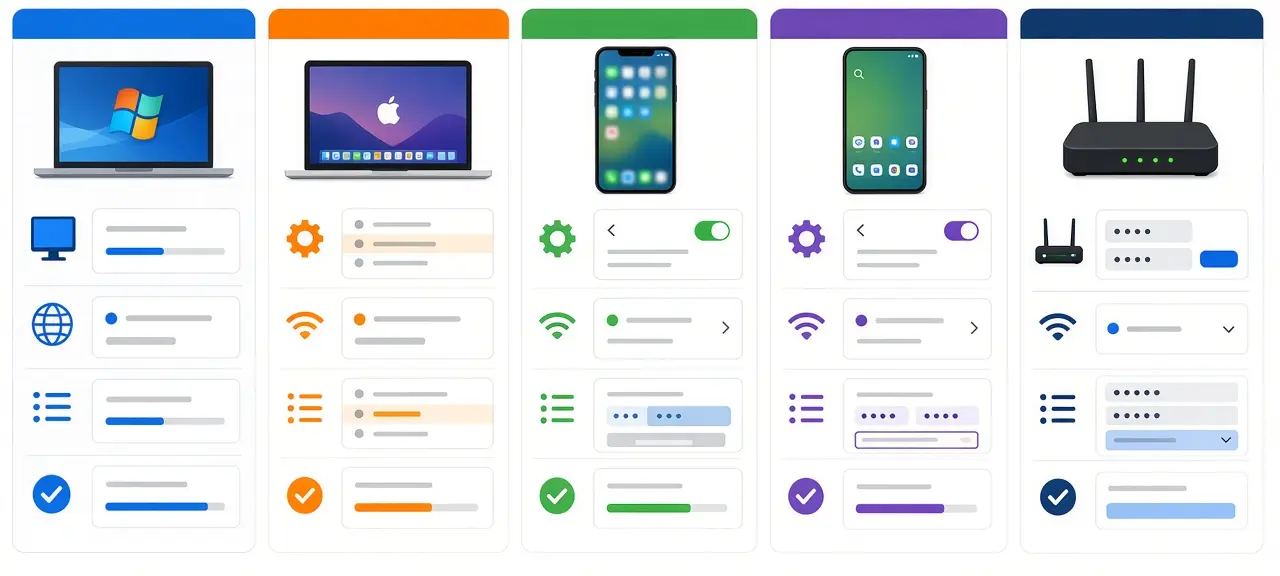
After setup, change the default admin password, keep the firmware current and turn off features you don't use. Each takes a minute in the router's admin page.
- Change the admin password printed on the label. Anyone on your Wi-Fi can try it.
- Use WPA2 or WPA3 security and change your Wi-Fi password if it's still the one on the sticker.
- Install firmware updates, or turn on automatic updates if the router offers them.
- Open the connected devices or DHCP client list and check for devices you don't recognize. If one shouldn't be there, you can block devices on your Wi-Fi from that same list.
- Put visitors and smart home gadgets on a guest network.
- Turn off WPS and remote management if you never use them.
Frequently asked questions
Do I need a router if I have a modem?
Not for one wired computer: plug it into the modem and it goes online. You need a router as soon as you want Wi-Fi or more than one device connected. If your ISP gave you a gateway, it already has a router inside, so you don't need to buy another one unless the Wi-Fi doesn't reach every room.
Can a router work without internet?
Yes. With the modem unplugged or the ISP down, the router still runs your local network. You can still print to a network printer and copy files between computers. Only websites and online apps stop working until the connection comes back.
Is Wi-Fi the same as a router?
No. Wi-Fi is the wireless standard devices use to talk to each other without cables. A router is the device that usually creates the Wi-Fi network in your home, along with routing and handing out addresses. A router can also work with cables only.
Does a router change my public IP address?
No. Your ISP assigns the public IP, and the router only uses it. Restarting the router can bring a new address if your ISP gives out dynamic IPs, since the router asks for a lease again. Adding a second router doesn't change it.
Can a router slow down my internet?
Yes, an old router or a weak Wi-Fi signal can be the bottleneck. To find out, run a speed test on a laptop plugged into the router by cable, then again over Wi-Fi in the same room. A big gap points to the Wi-Fi, not your plan.