

DNS (Domain Name System) is the naming system of the internet: it translates a domain name such as example.com into the IP address a device needs to connect. So the short answer to what is DNS is a lookup service for names. Every time you open a website or an app, your device asks a DNS resolver, usually run by your internet provider, which IP address belongs to that name. The reply comes back in a fraction of a second and is saved for later. That is why you rarely notice DNS until it fails.
What is DNS doing when you open a website?
When you type a domain name, your device first checks its own cache. If the answer is not there, it asks a recursive resolver. The resolver asks a root server, then a top-level domain (TLD) server, then the domain's authoritative server, and sends the IP address back to your device. Caching cuts most lookups short.
A full lookup for www.example.com with an empty cache:
- The browser and the operating system check their caches and the local hosts file.
- Nothing matches, so the device sends the question to the resolver address it got from the router through DHCP.
- The resolver asks a root name server, which replies with the servers for .com.
- A .com TLD server replies with the name servers registered for example.com.
- One of those authoritative servers returns the A record (IPv4) or AAAA record (IPv6).
- The resolver stores the answer for as long as its TTL allows and passes it to your device.
- The browser connects to that IP address and requests the page.
Step 2 is a recursive query: your device hands the whole job to the resolver. Steps 3 to 5 are iterative: each server only points the resolver one level closer. A second visit usually ends at step 1 or step 6, from cache.
Types of DNS servers: resolver, root, TLD and authoritative
A lookup uses four kinds of DNS servers. The recursive resolver asks on behalf of your device. Root servers point to TLD servers, and TLD servers point to the name servers of each domain. Authoritative name servers hold the actual records.
| Server | What it does | Who runs it | Example |
|---|---|---|---|
| Recursive resolver | Asks other servers for you and caches the answers | Your ISP by default, or a public DNS service | Your ISP's resolver, 8.8.8.8 |
| Root name server | Points to the servers of each top-level domain | 12 independent organizations | a.root-servers.net to m.root-servers.net |
| TLD name server | Points to the name servers of every domain under one ending | The registry for that ending | Verisign for .com, VNNIC for .vn |
| Authoritative name server | Holds the records of a domain and gives the final answer | The domain owner or the DNS provider they chose | The name servers listed for example.com |
Root servers are often described as "13 servers". That number counts names, not machines. According to root-servers.org, 12 operators run 13 root identities, lettered A to M, through 2,047 instances worldwide (checked on 12 October 2026). Anycast lets many machines share one address, so a resolver reaches a nearby copy. VNNIC does the same for .vn with eight server clusters and over 100 points of presence.
What is a DNS server: resolver vs authoritative server
A DNS server is any server that answers DNS queries, but the term covers two jobs. A resolver knows nothing in advance; it asks and remembers. An authoritative server answers only for its own zones, and its answer is final. The "DNS server" in your network settings is a resolver.
Where your DNS resolver comes from
Your router receives resolver addresses from your provider when it connects, then hands them to every phone and laptop through DHCP. If you are not sure who that provider is, start with what an ISP is. You can replace the ISP resolver with a public one. The Google Public DNS guide covers one such option and what it logs.
DNS and IP addresses: how they fit together
The DNS IP address in your network settings is the address of your resolver, not your own address. DNS does not give your device its IP address; your router or ISP does that through DHCP. DNS only finds the IP address behind other names.
To see which resolver you use, run ipconfig /all in Command Prompt on Windows and read the DNS Servers line. A private address such as 192.168.1.1 in that list usually means the router forwards your queries to the ISP. To pick a different resolver, follow the steps to change your DNS server.
DNS also works in reverse. A PTR record maps an IP address back to a name, which is called reverse DNS. ISPs set these names for customer addresses. You can see your IP and its hostname on the CheckIP homepage. If the Hostname field repeats the IP, no reverse name is set for it.
DNS record types and what each one holds
DNS record types tell a resolver what kind of data a name holds. A and AAAA records hold IP addresses, CNAME points one name to another, MX names the mail server, and TXT holds text used for checks such as SPF. One domain usually has several record types at once.
| Record | Holds | Example use |
|---|---|---|
| A | An IPv4 address | example.com pointing to a web server |
| AAAA | An IPv6 address | The same site reached over IPv6 |
| CNAME | Another name (an alias) | www.example.com pointing to a CDN hostname |
| MX | A mail server name and its priority | Where email for @example.com is delivered |
| TXT | Free text | SPF, DKIM and domain ownership checks |
| NS | The domain's authoritative name servers | Delegation from the TLD to the domain |
| PTR | A name for an IP address | Reverse DNS |
| SOA | Zone details: primary server, admin contact, serial number, timers | Managing the zone |
| SRV | The host and port of a service | VoIP, chat and some games |
What is TTL in DNS?
TTL (time to live) is the number of seconds a resolver may keep a record before it must ask again. A record with a TTL of 3600 can be served from cache for up to one hour. After a site moves to new hosting, some visitors reach the new server at once while others land on the old one until their cached copy expires.
How to look up a DNS record yourself
Every computer has a lookup tool built in. In a terminal on any system, run nslookup -type=AAAA example.com to get the IPv6 address. On macOS or Linux, dig example.com MX shows the mail servers with more detail. In dig output, the ANSWER SECTION lists the records, and the number after the name is the remaining TTL in seconds.
What transport protocol does DNS use? Port 53, DoT and DoH
Classic DNS uses UDP on port 53 for most queries and switches to TCP on port 53 when an answer is too large or a whole zone is copied between servers. RFC 1035 limits plain UDP messages to 512 bytes. A reply that does not fit is marked as truncated, and the resolver asks again over TCP.
Encrypted DNS uses other ports. If port numbers are new to you, read what a port number is first.
| Protocol | Port | Encrypted | Where you meet it |
|---|---|---|---|
| Classic DNS (Do53) | 53, UDP and TCP | No | The default on almost every network |
| DNS over TLS (DoT), RFC 7858 | 853, TCP | Yes | Android Private DNS |
| DNS over HTTPS (DoH), RFC 8484 | 443 | Yes | Secure DNS in Chrome, Edge and Firefox; Windows 11 |
| DNS over QUIC (DoQ), RFC 9250 | 853, UDP | Yes | Supported by fewer resolvers and apps |
DNSSEC vs DNS over TLS
DNSSEC and DNS over TLS fix different problems. DNSSEC adds digital signatures to records, so a validating resolver can prove an answer was not altered. The query itself still travels in plain text. DNS over TLS encrypts the trip between your device and the resolver, but it cannot prove that the resolver's answer is genuine. The two work well together. TLS here is the same protocol that secures HTTPS sites, and our guide to SSL and TLS protocols covers each version.
DNS caching and why "flush DNS" fixes some errors
DNS answers are cached in three places: the browser, the operating system and the resolver. Each copy lives until its TTL runs out. When a site changes its IP address, or you switch resolvers, an old cached answer can keep sending you to the wrong server until it expires or you clear it.
On Windows, ipconfig /flushdns clears the system cache, and Command Prompt replies "Successfully flushed the DNS Resolver Cache." Commands for other systems are in the DNS change guide. Flushing your computer does not touch your ISP resolver's cache. That copy expires on its own schedule.
DNS security: spoofing, hijacking and how to protect yourself
The main DNS threats replace a real answer with a fake one. Cache poisoning, also called DNS spoofing, plants false records in a resolver. DNS hijacking changes which resolver you use, often through a compromised router or malware. On open Wi-Fi, others can read plain DNS queries.
Warning signs include certificate warnings on sites you use every day, a bank login page with an odd address, and ads on pages that never had them. Fake DNS answers are a common route into man-in-the-middle attacks. To protect yourself:
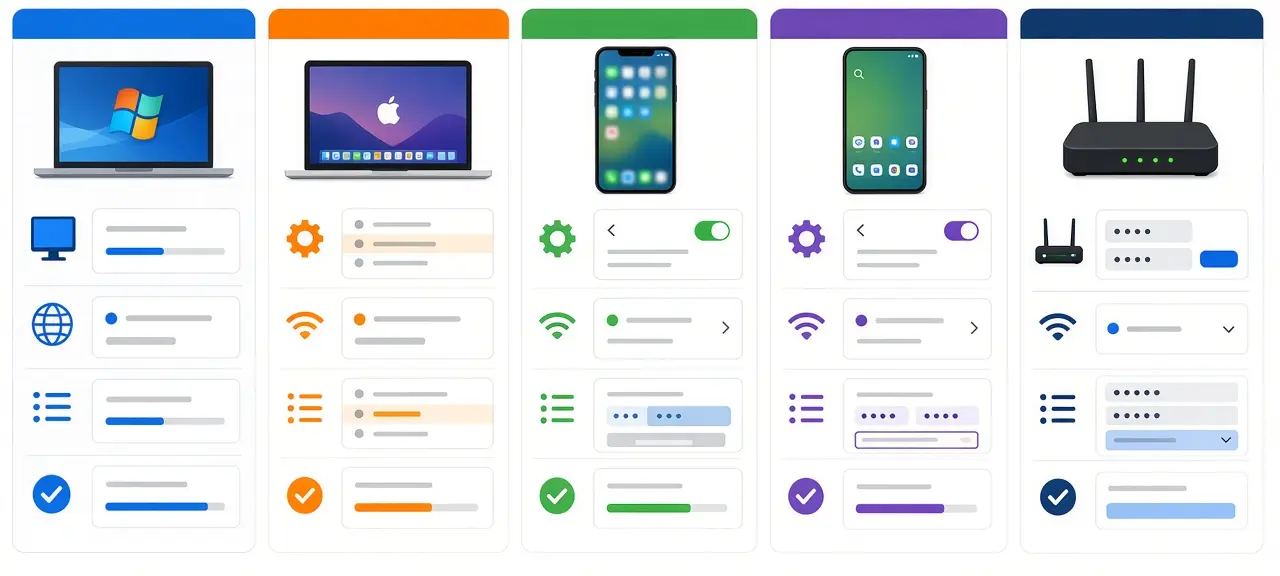
- Log in to your router and check that its DNS fields are set to automatic or hold addresses you chose yourself.
- Change the router's admin password and install firmware updates.
- Use a resolver that validates DNSSEC.
- Turn on DoH in your browser, or Private DNS on Android.
- Never type DNS addresses sent by strangers.
DNS settings do not hide your IP address. Websites still see the public address your ISP assigned, whichever resolver you use.
Common DNS errors and what they mean
Most DNS errors mean your device asked for a name and got no usable address back. The error text tells you whether the name, the resolver or the connection failed, so read the code before you change any settings.
| Error | What it means | First thing to try |
|---|---|---|
| DNS_PROBE_FINISHED_NXDOMAIN (Chrome) | The resolver reports that the name does not exist | Check the spelling, then test another resolver |
| This site can't be reached: server IP address could not be found | Chrome got no address for the name | Reload, then flush the DNS cache |
| DNS server isn't responding (Windows Network Diagnostics) | The resolver did not answer at all | Restart the router, then try another resolver |
| DNS_PROBE_FINISHED_NO_INTERNET | The device has no connection to reach any resolver | Check the Wi-Fi or cable connection first |
| SERVFAIL (in nslookup or dig) | The resolver failed, often due to broken DNSSEC on the domain | Try another resolver; if both fail, the domain is at fault |
Frequently asked questions
What does DNS stand for?
DNS stands for Domain Name System. Paul Mockapetris designed it in 1983 in RFC 882 and RFC 883. RFC 1034 and RFC 1035, published in November 1987, replaced the first two documents and still define the core of the system.
What is a DNS name?
A DNS name is a domain name or hostname that DNS can look up, such as www.example.com. Read it from right to left: .com is the top-level domain, example is the domain, and www is a host inside it. Some tools print a trailing dot, as in www.example.com., which stands for the root of the DNS tree.
What is DNS on my phone?
Your phone uses the DNS servers given by the Wi-Fi network it joins, or by your mobile carrier on cellular data. Android 9 and later add a Private DNS setting that sends queries over DNS over TLS to a hostname you enter. On iPhone, you set DNS separately for each Wi-Fi network.
Does changing DNS make the internet faster?
Only the name lookup can get faster, and it usually takes milliseconds or is skipped for cached names. Download speed, upload speed and ping to a game server stay the same. A different resolver helps when your current one answers slowly or fails.
Is DDNS the same as DNS?
No. Dynamic DNS (DDNS) is a service that updates a DNS record automatically when your home IP address changes. It lets you reach a camera or home server by name even though your ISP gives you a dynamic address. Ordinary DNS records change only when someone edits them.
Can my ISP see my DNS queries?
Yes, if you use classic DNS on port 53, because those queries travel unencrypted, even when they go to a public resolver. With DoH or DoT, your ISP can no longer read the names you look up. The resolver you send them to still sees every query, and your ISP still sees the IP addresses you connect to.