
To answer "what is a personal hotspot" in one line: it's a phone feature that shares the phone's cellular data with other devices, usually by turning the phone into a small Wi-Fi network. It can also share over a USB cable or Bluetooth. iPhone and iPad call it Personal Hotspot; Android calls it Wi-Fi hotspot, and Samsung calls it Mobile Hotspot. Everything the connected laptop downloads comes out of your mobile plan, and websites see your carrier's IP address instead of your home one.
What is a personal hotspot and how does it work?
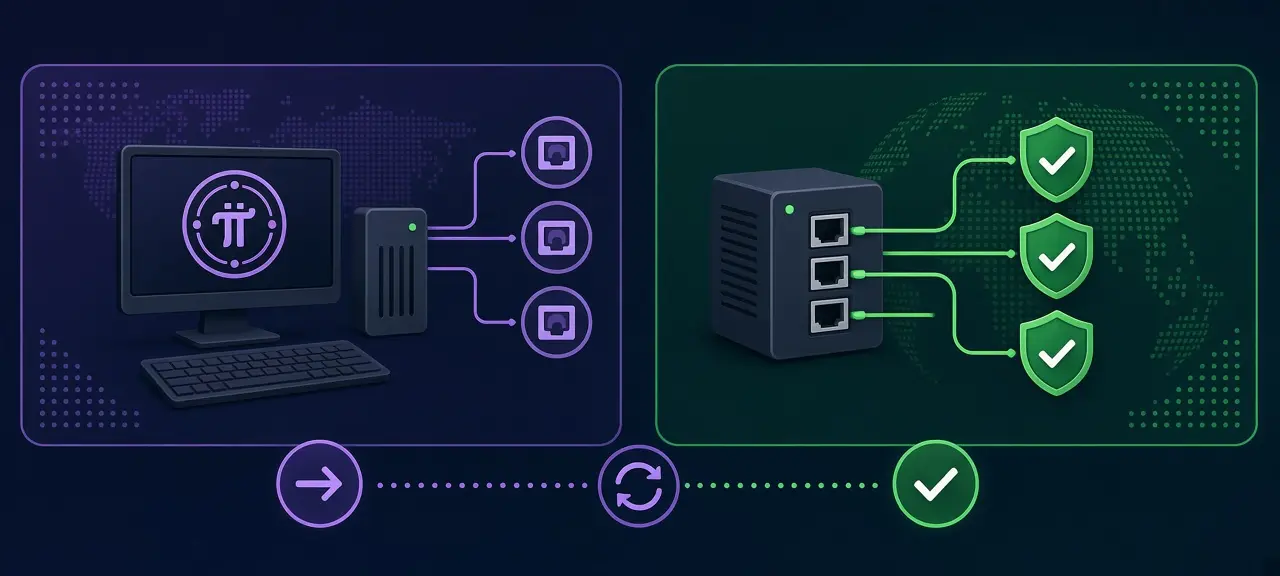
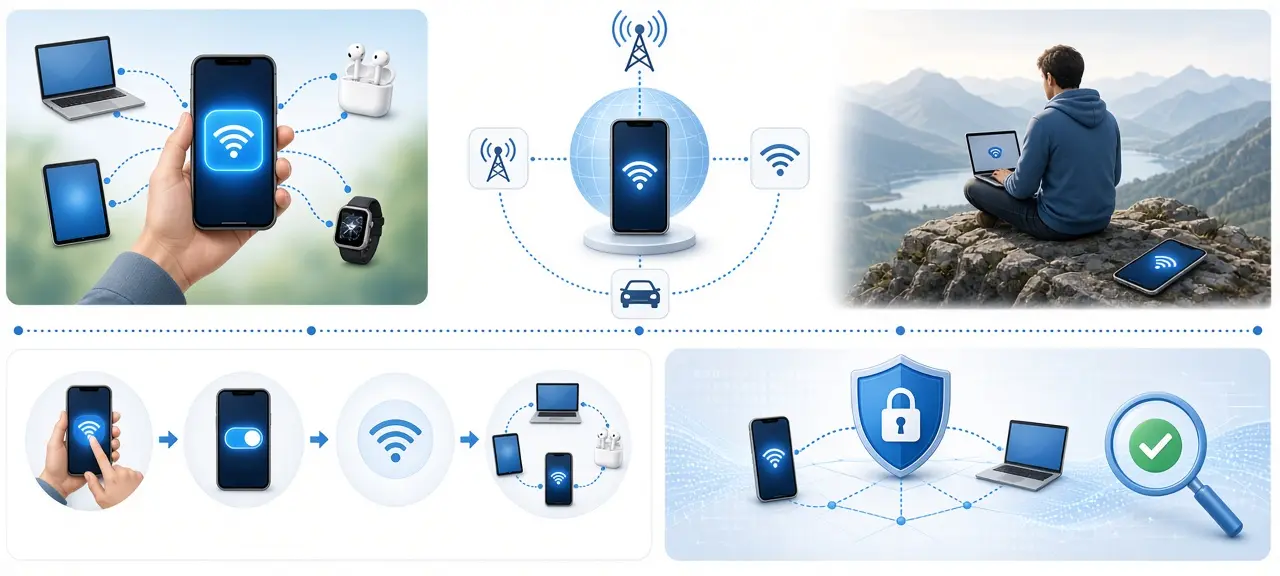
A personal hotspot makes your phone act as a small router. The phone receives internet over 4G or 5G, broadcasts its own Wi-Fi network with a name and password, gives each connected device a private IP address, and forwards their traffic out over the mobile network.
The network name is an SSID, the same as a home router's Wi-Fi name (see what an SSID is if the term is new). On iPhone the hotspot name is simply the phone's name, such as "Anna's iPhone". You can share the connection three ways:
| Method | How the other device connects | Good for | Trade-off |
|---|---|---|---|
| Wi-Fi | Picks the phone's network from its Wi-Fi list and enters the password | Several devices, no cable | Drains the phone's battery unless it's charging |
| USB | Plugs into the phone with a charging cable | One laptop, steady link, phone charges at the same time | Macs can't use USB tethering with Android, according to Google |
| Bluetooth | Pairs with the phone first | When Wi-Fi won't connect | The slowest of the three |
The phone shares mobile data, not a Wi-Fi network it has joined. Samsung's support page states that turning on Mobile Hotspot turns off Wi-Fi.
Personal hotspot vs public Wi-Fi hotspot vs mobile hotspot device
A hotspot is any spot or device that gives nearby devices Wi-Fi internet. Cellular hotspots, meaning a phone or a pocket hotspot device with its own SIM, get that internet from a mobile network. A Wi-Fi hotspot service in a café, airport or hotel runs on the venue's fixed line instead. Who controls the network is the biggest difference.
| Type | Who controls it | Password | Internet source | Typical use |
|---|---|---|---|---|
| Personal hotspot (phone) | You | You set it | Your phone's mobile plan | A laptop on the move |
| Public Wi-Fi hotspot | The venue | Shared with every customer, or none | The venue's fixed line | Short visits |
| Mobile hotspot device | You | Printed on the device or set in its app | A SIM inside the device | Travel, a few devices for days |
| Home internet | You and your provider | You set it | Fiber or cable line | The whole household |
How to turn on a personal hotspot on iPhone
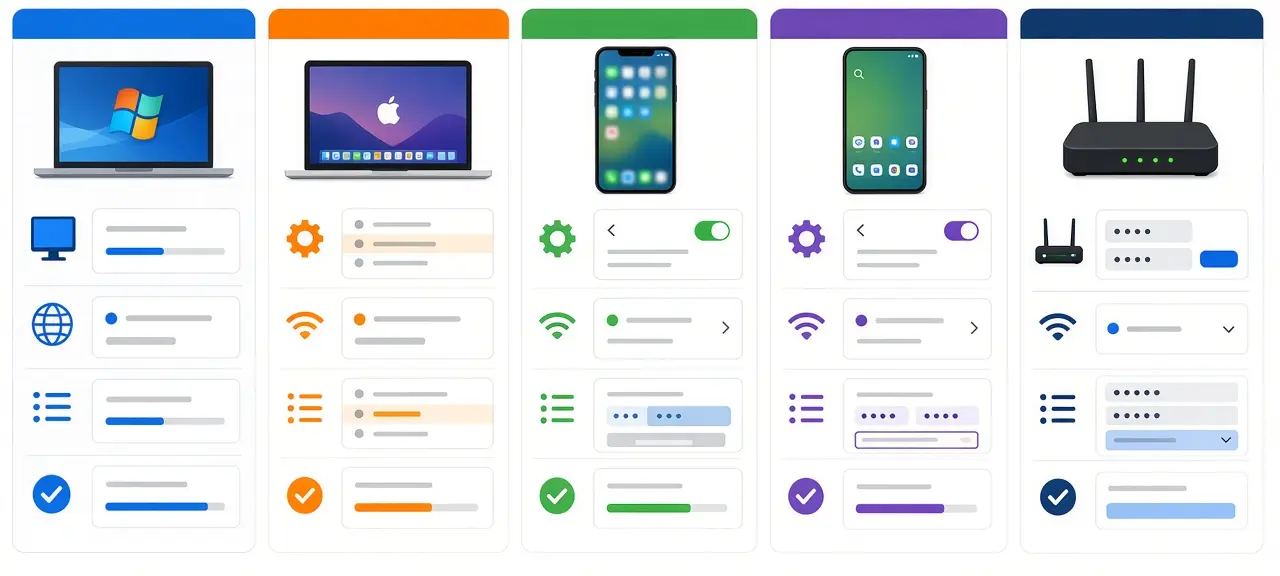
On iPhone, open Settings, tap Personal Hotspot and turn on Allow Others to Join. If it isn't on the first Settings screen, go to Settings, then Cellular, then Personal Hotspot. Apple's support page (published May 7, 2026) says to stay on that screen until the other device connects.
- Open Settings and tap Personal Hotspot.
- Turn on Allow Others to Join.
- Tap Wi-Fi Password to set your own. It must be at least 8 characters and use only ASCII characters, so plain English letters, numbers and standard punctuation.
- On the laptop or tablet, pick the iPhone's name in the Wi-Fi list and type the password.
To rename the hotspot, change the phone's name in Settings, General, About, Name. Devices on the same Apple Account or Family Sharing group can join with Instant Hotspot, no password needed.
For USB, a Windows PC needs the latest Apple Devices app or iTunes for Windows. Plug in the cable and tap Trust on the iPhone if asked. Pulling the cable out doesn't stop the hotspot, so turn off Allow Others to Join when you're done. For Bluetooth, pair the computer with the iPhone while the iPhone's Bluetooth screen is open, then tap Pair.
If an older laptop can't see the network, turn on Maximize Compatibility on the Personal Hotspot screen. It has a cost. Apple's Platform Security guide says that on iPhone 12 and later it turns off 5 GHz (and 6 GHz where available), limits the hotspot to 2.4 GHz and switches security from WPA2/WPA3 to WPA2 Personal. Apple also notes that an iCloud backup may not run over a hotspot.
How to turn on a Wi-Fi hotspot on Android
On Android, swipe down from the top of the screen, touch and hold the Hotspot tile, and turn on Wi-Fi hotspot. Google's Android Help page says you may first need to tap Set up Wi-Fi hotspot to choose a name and password. Some of the steps only work on Android 14 and up.
USB tethering and Bluetooth tethering are switches on the same screen. Google allows up to 10 other devices on one Wi-Fi hotspot. If the tile is missing, type "hotspot" into the Settings search box.
Samsung Galaxy
On Samsung phones the path is Settings, Connections, Mobile Hotspot and Tethering, Mobile Hotspot. Tap Configure to change the network name, password and security type, hide the network or turn on power saving. Samsung's support page also lists a timeout under Configure, then Advanced, that switches the hotspot off when no device is connected.
Are mobile hotspots secure?
A personal hotspot is secure when it uses WPA2 or WPA3 encryption and a strong password, which is how iPhone sets it up. Apple's Platform Security guide lists WPA2/WPA3 Personal as the default and says the system suggests a random password. The real risks are a weak or widely shared password, and a hotspot with no password.
- Keep security on WPA2 or WPA3. Android lets you pick None under Security; never set security to None, even for a minute.
- Use a long password and change it after a stranger has used your hotspot.
- Turn the hotspot off when you finish, or switch on auto-off when no device is connected.
- Check the connected devices your phone shows on the hotspot screen. One you don't recognize means the password got out.
- Don't rely on a hidden network name. Hiding the name doesn't replace the password.
Your own hotspot is safer than an open café network: only people with the password can join, and the Wi-Fi link is encrypted. It is not a VPN. Your carrier still carries every request, as your home provider does. Open café Wi-Fi is where a man-in-the-middle attack is easiest to pull off.
What happens to your IP address on a hotspot
On a hotspot, your laptop gets a private IP address from the phone, and websites see the phone's public IP, which belongs to your mobile carrier. Open CheckIP on the laptop and the provider and ASN shown will be the carrier, not your home internet provider.
Type ipconfig in Windows Command Prompt, or look at the Wi-Fi details on a Mac, and you'll see a private address such as 172.20.10.x or 192.168.x.x, with the phone as the default gateway. To see the address websites get, check your public IP on the laptop.
Many mobile carriers also put subscribers behind shared public IPs. Our phone IP guide explains carrier-grade NAT on mobile networks and how to spot it. On a hotspot the laptop then sits behind two layers of NAT, the phone's and the carrier's. That has practical effects:
- You can't open ports or host a game server, because inbound connections stop at the carrier. Port forwarding needs a public IP that is yours alone.
- The IP location may show a different city from the one you're in.
- Shared IPs bring more CAPTCHAs, and the IP often changes when mobile data reconnects.
How much data does a hotspot use?
A hotspot uses as much mobile data as the connected devices pull, and there is no fixed number per hour. A laptop treats the hotspot like home Wi-Fi. It may start a large operating system update or sync cloud folders without asking you. Video also streams at higher quality on Wi-Fi.
A few settings keep usage down:
- On Windows 11, open the hotspot network's properties in Settings, Network and internet, Wi-Fi, and turn on Metered connection. Windows then holds back many large downloads.
- On a Mac, iPhone or iPad joining the hotspot, turn on Low Data Mode in that Wi-Fi network's details.
- Pause photo and cloud-drive sync until you're back on home Wi-Fi.
Track the total on the sharing phone. On iPhone, the Cellular screen in Settings lists data per app and service, including Personal Hotspot. Apple writes that "additional fees may apply" for Personal Hotspot, and Google writes that "some mobile carriers limit or charge extra for tethering." Check your plan's hotspot allowance.
Can I use a mobile hotspot for home internet?
You can use a mobile hotspot for home internet for a few days or as a backup when the fixed line is down, but it is a weak permanent replacement. Google notes that some carriers limit or charge extra for tethering, and the phone has to stay where the signal is good.
- Battery and heat: hours of sharing keep the phone plugged in and warm.
- Device count: Android tops out at 10 devices; Apple says the iPhone limit depends on carrier and model.
- Shared IP: behind carrier-grade NAT there is no port forwarding for a game server or a home camera.
- Signal: speed depends on coverage at your address and how busy the cell is.
A fixed fiber or cable line gives steadier speed and frees the phone. Before you decide, run a speed test over the hotspot at different times of day.
Hotspot not working? Quick fixes
Most hotspot problems come from mobile data being off, a plan without tethering, or an older device that can't see the newer Wi-Fi bands. Restarting both devices fixes many one-off failures, so try that before changing settings. Then match the symptom below.
| Problem | Fix |
|---|---|
| Personal Hotspot is grayed out or missing on iPhone | Settings, Cellular: turn on Cellular Data. If it is still missing, your plan may not include hotspot; ask your carrier. |
| The laptop can't see the hotspot | Stay on the hotspot screen. On iPhone turn on Maximize Compatibility; on Android choose the 2.4 GHz band if your phone offers it. |
| Connected, but no internet | Turn mobile data off and on, restart both devices, and check you haven't run out of data. |
| The hotspot keeps turning off | Auto-off when nothing is connected, or a battery saver mode, is switching it off. Connect the other device right away or lengthen the timeout. |
| A Mac won't tether to an Android phone by USB | Google states Macs can't do this. Use the Wi-Fi hotspot instead. |
Frequently asked questions
Does a personal hotspot use my data plan?
Yes. A personal hotspot shares the phone's mobile data, so every download on the connected laptop or tablet counts against your plan. It doesn't share a Wi-Fi network the phone is on. A laptop running system updates over the hotspot can use a large share of a monthly allowance in one session, so check the usage counter on the phone.
How many devices can connect to a hotspot?
Google says an Android phone can share its mobile data with up to 10 other devices over a Wi-Fi hotspot. Apple doesn't give one number for iPhone: the limit depends on your carrier and iPhone model. Every connected device shares the same mobile connection, so speed per device drops as more join.
Is a hotspot the same as tethering?
Tethering is the general term for sharing a phone's mobile connection with another device, by Wi-Fi, USB or Bluetooth. A hotspot usually means the Wi-Fi version. Android menus keep the terms apart (Wi-Fi hotspot, USB tethering, Bluetooth tethering), while iPhone puts all three under Personal Hotspot.
Does using a hotspot drain the battery?
Yes. The phone keeps its cellular radio and Wi-Fi radio busy at the same time. Google's advice is to keep the phone charging while tethering, turn the hotspot off when you're done and turn on auto-off when no device is connected.
Why does my laptop show a different IP on a hotspot?
Your laptop uses the phone's mobile connection, so websites see the IP address your carrier gives the phone, not your home router's IP. Turn the hotspot off and the laptop goes back to your home IP on the next Wi-Fi connection.